
Words and images are not enough sometimes to convert sales. Shopify designers use videos as a more efficient way of explaining their product or service. This is where video embedding comes in for platforms like YouTube, TikTok, and Meta etc. But, when you’re using Canva, how do you embed a live TikTok video in your Canva design?
You turned your Canva design into a sleek Shopify page through our tool Canvify but just having a pretty store isn’t enough (we admit that). You need to keep things fresh, engaging, and trendy. And what’s trendier than embedding live TikTok videos? Here’s how you can do it in 2 ways!
-
- Embed Tiktoks using Canva & Canvify app.
-
- Embed Tiktoks using a dedicated EmbedAny app
Lets explore both ways!
| Method | Setup steps | Editing location | Shopify workflow | Design control | Update process | Best for |
|---|---|---|---|---|---|---|
| EmbedAny | Add an app section and paste the TikTok URL | Shopify theme editor | Direct app-section embed | Control the theme section around the widget | Edit the EmbedAny section in Shopify | Fast, direct TikTok embedding |
| Canva Embed + Canvify | Embed in Canva, position the video, then import the design | Canva, followed by Canvify | Publish or update the Canva-designed page | Full control over the surrounding Canva layout | Republish in Canva and update through Canvify | TikTok inside a custom landing-page design |
How to Embed Live Tiktoks in Shopify Using EmbedAny App
While embedding live TikTok videos in Canva is a fantastic way to make your Shopify page dynamic and engaging, there’s another tool to elevate your store’s content effortlessly: EmbedAny. This app allows you to seamlessly embed content from TikTok, YouTube, Instagram, and over 800 other platforms directly into your Shopify store.
Why EmbedAny? It’s simple—no coding, no hassle. Just grab a link to your favorite UGC or viral content, paste it in, and watch it transform into a live, interactive widget.
- Download the EmbedAny app
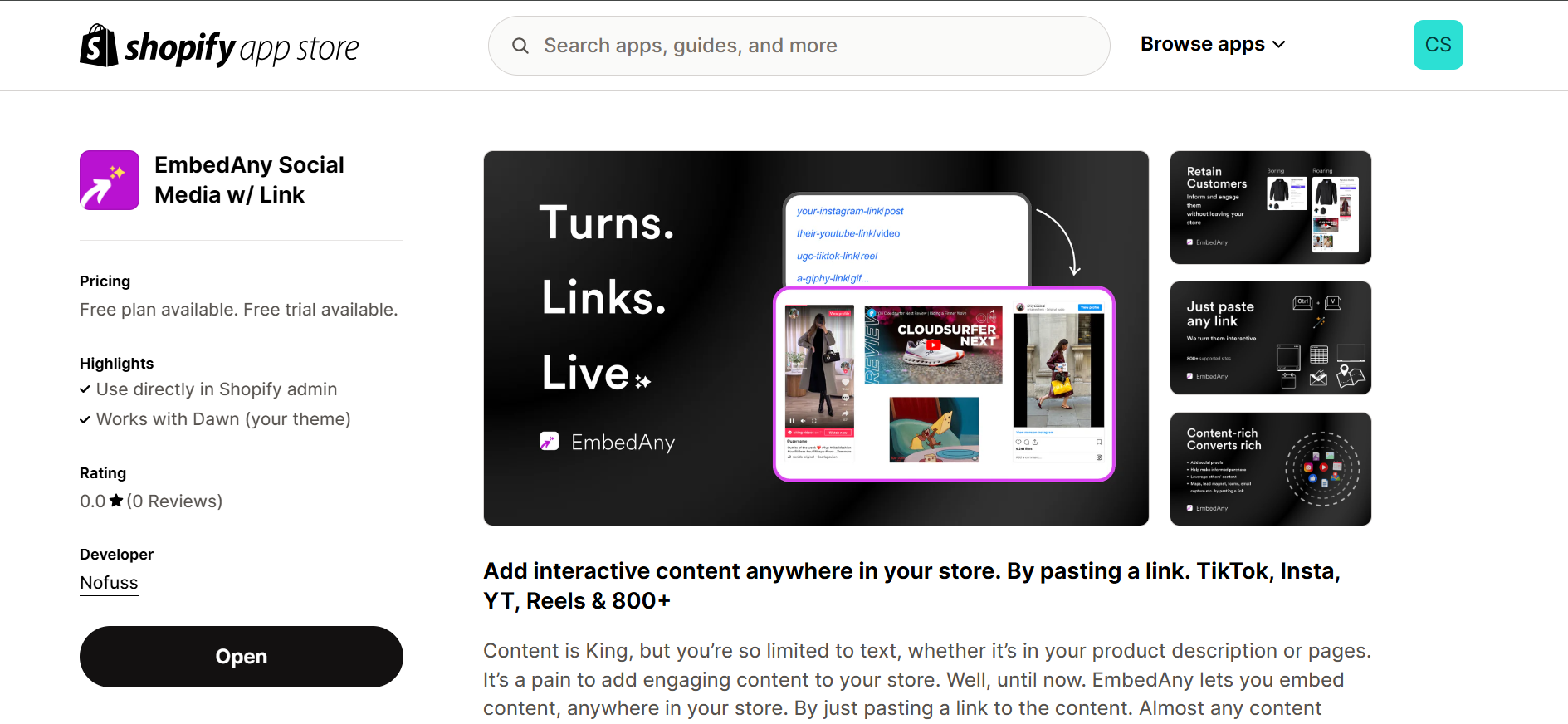
- Go to Shopify’s Online Store settings and click on ‘Customize’ on themes page.
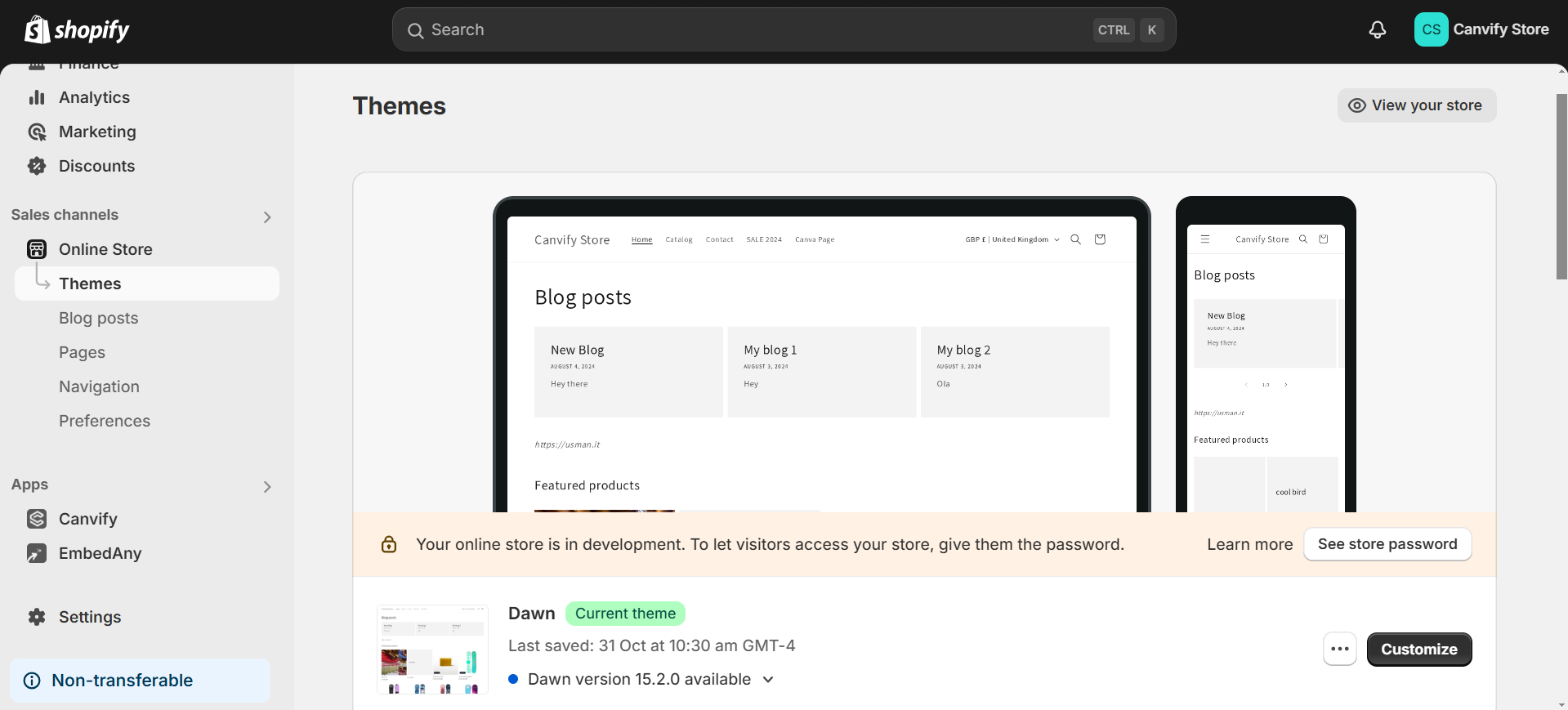
- Add a section from the left control pane and select EmbedAny app.
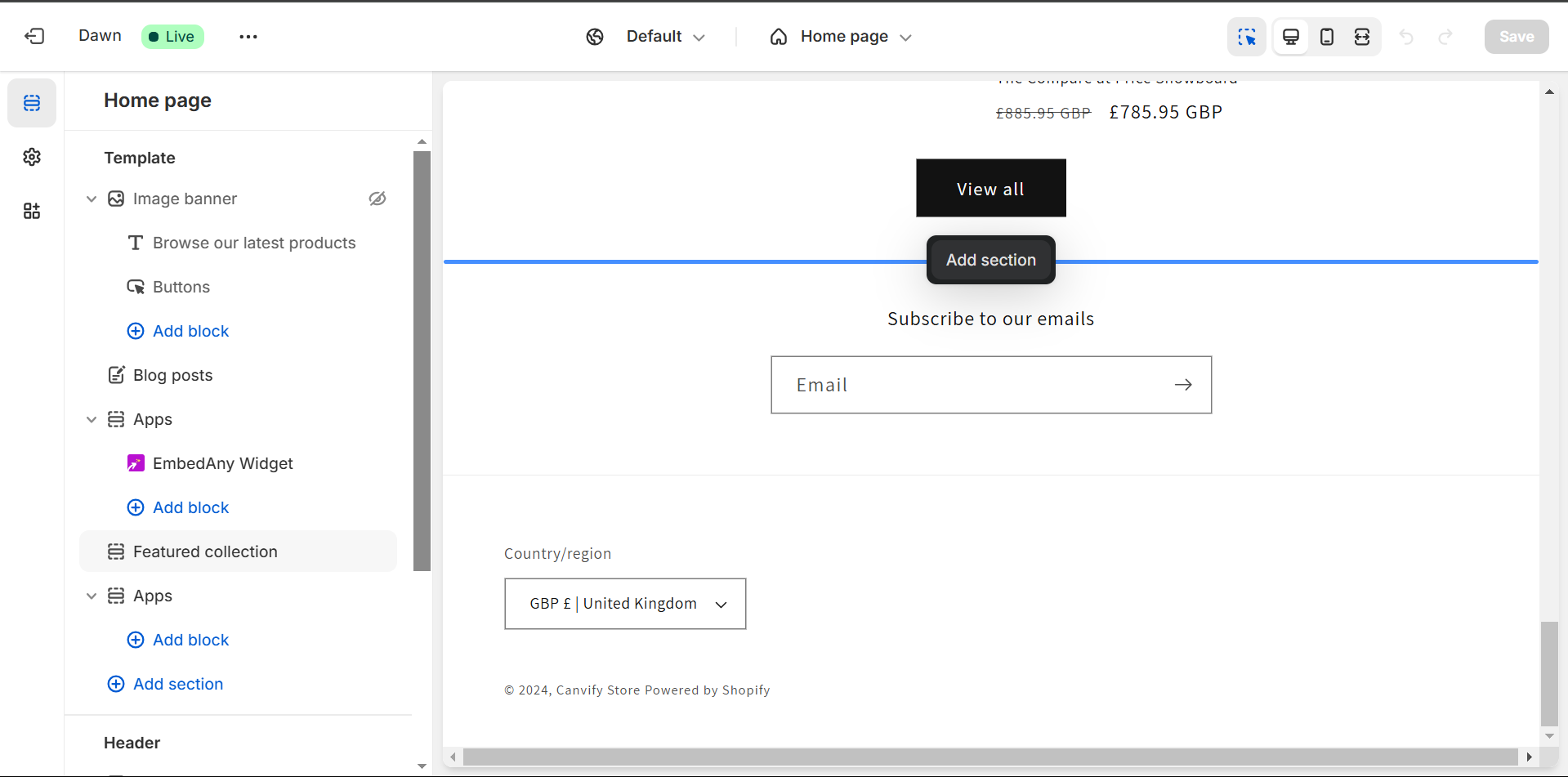
- Paste your Tiktok link in the text field on the left.
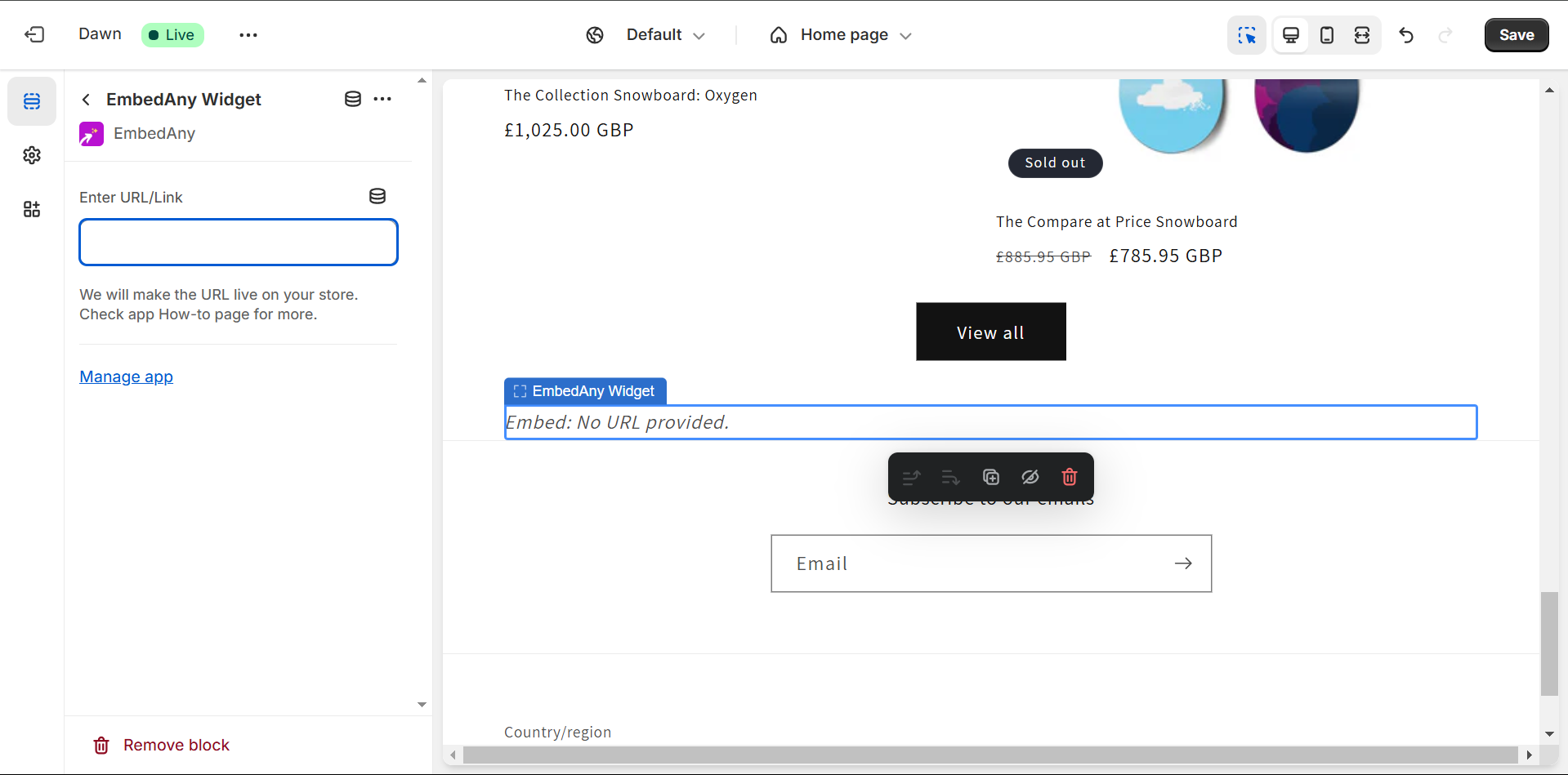
- Your link is live!
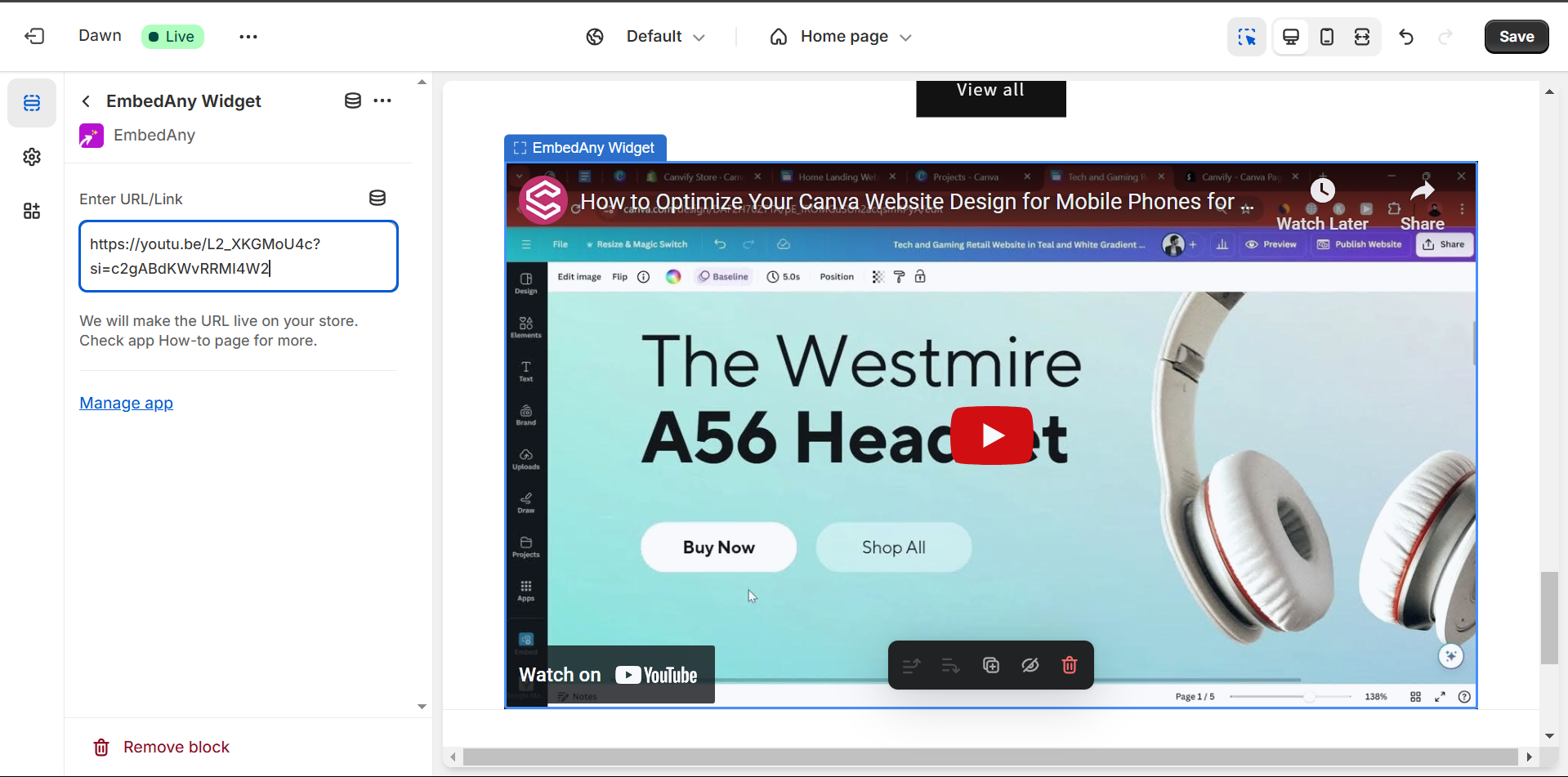
With EmbedAny, keeping your store trendy and vibrant has never been easier. Give it a try and see how simple UGC integration can drive conversions!
Adding a Tiktok Video to Canva Website Design Using Canvify
1. Open Your Website Design in Canva
Remember that Canva template you used to convert your design into a store? Yes, we need that still. Don’t trash it… open it!
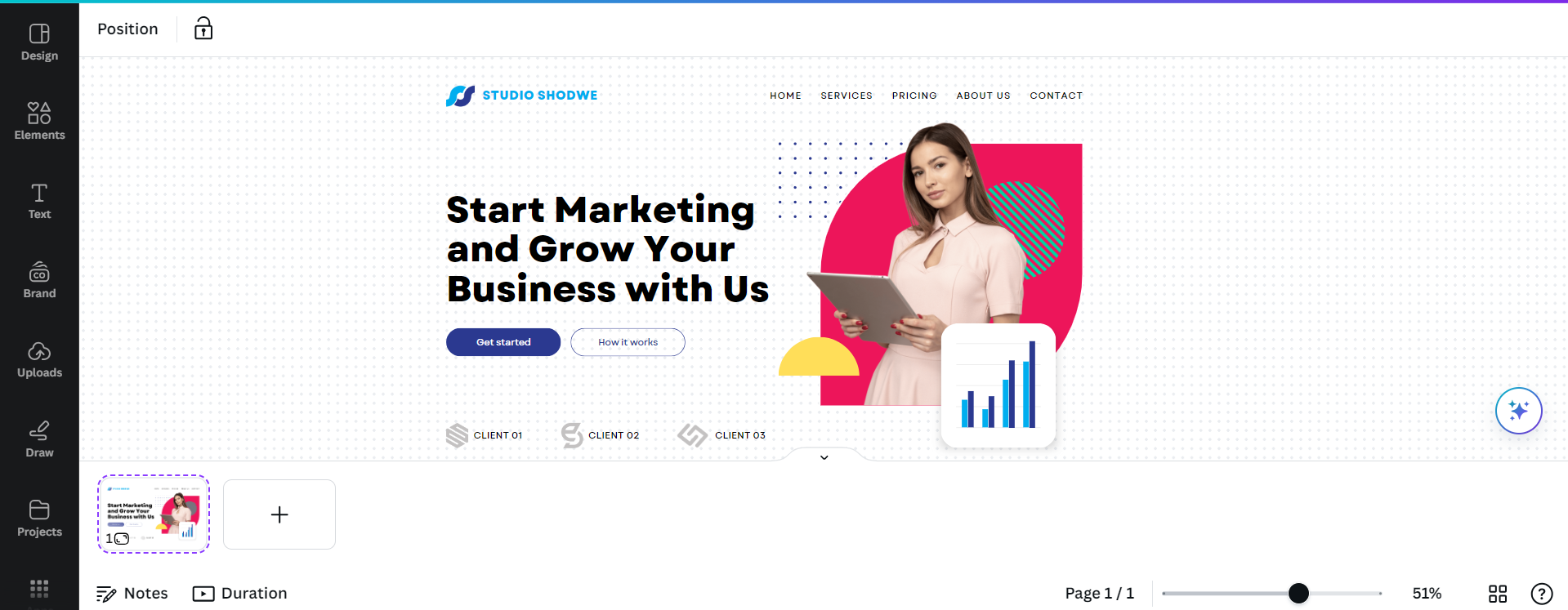
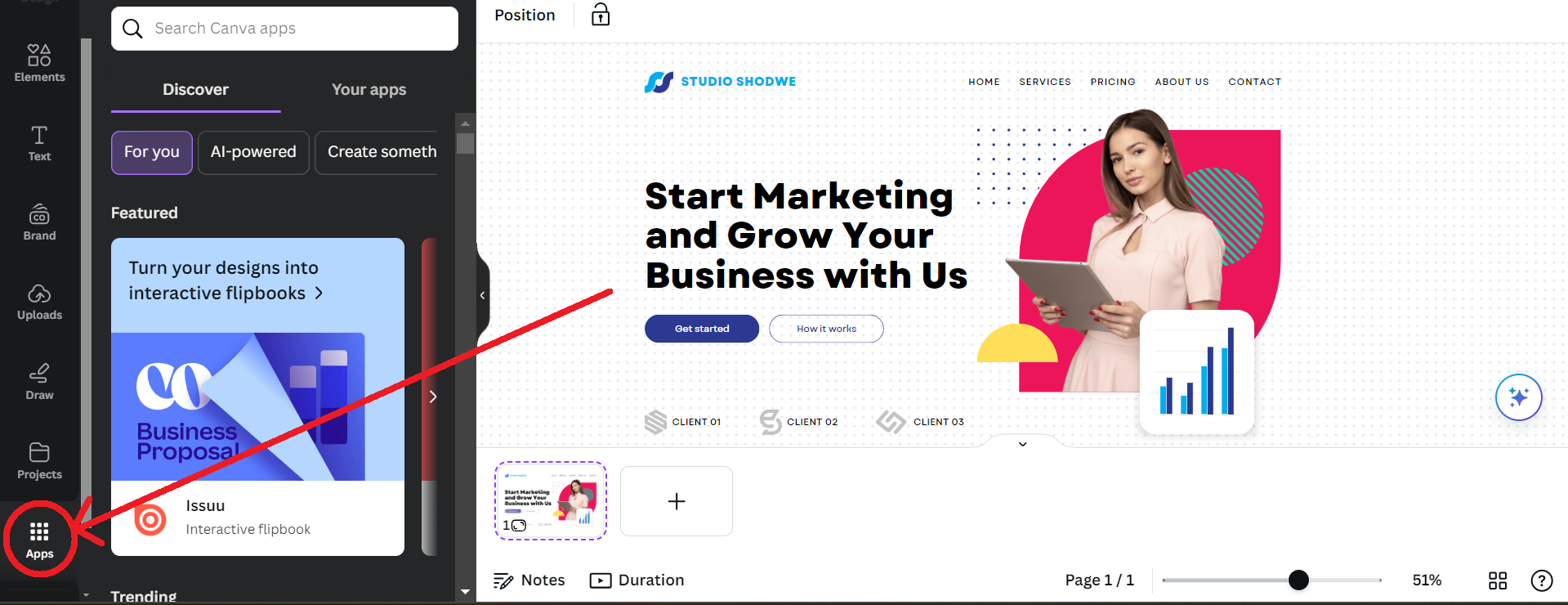
2. Navigate to Apps in Canva
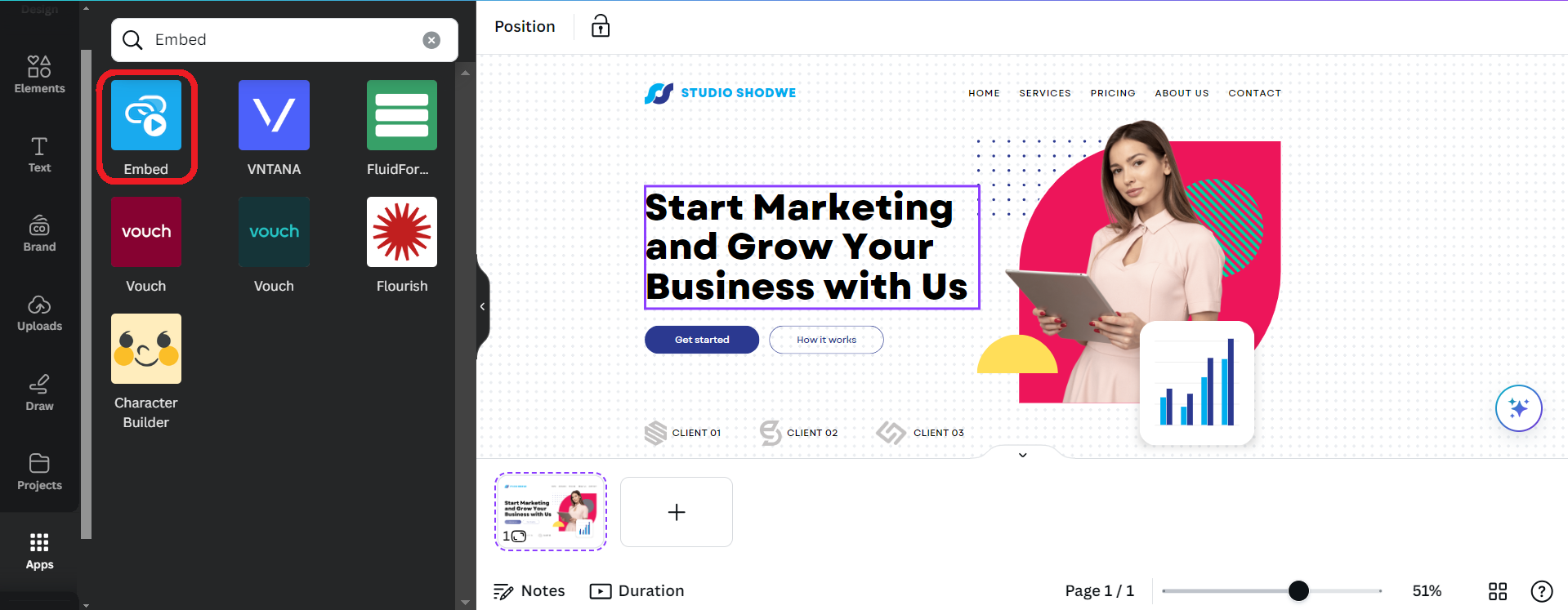
On the left-hand side of Canva, you’ll see a navigation menu. Click on “Apps.” Yes, Canva has apps.
3. Search for ‘Embed’
In the Apps section, use the search bar to find the “Embed” app. You’re looking for something that’ll let you paste a link and magically turn it into an embedded video. Canva really knows how to make life easier (just like us).
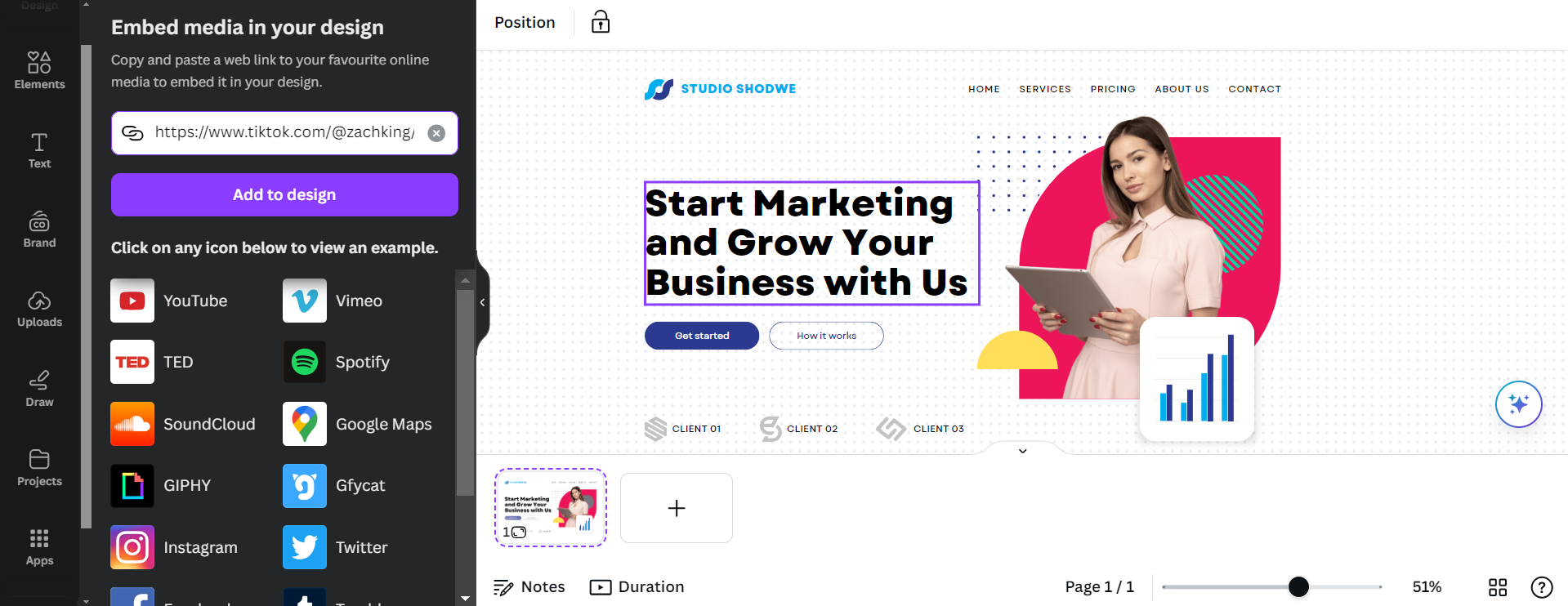
4. Paste Your TikTok Link
Got your TikTok link ready? Great. Paste it into the link bar. Canva will then do its thing and convert it into an embedded video. Boom, you’ve just integrated a piece of viral content into your design. You can also choose from other selections like Instagram posts or even Google Maps if you want. Embed gives you tons of options to choose from.
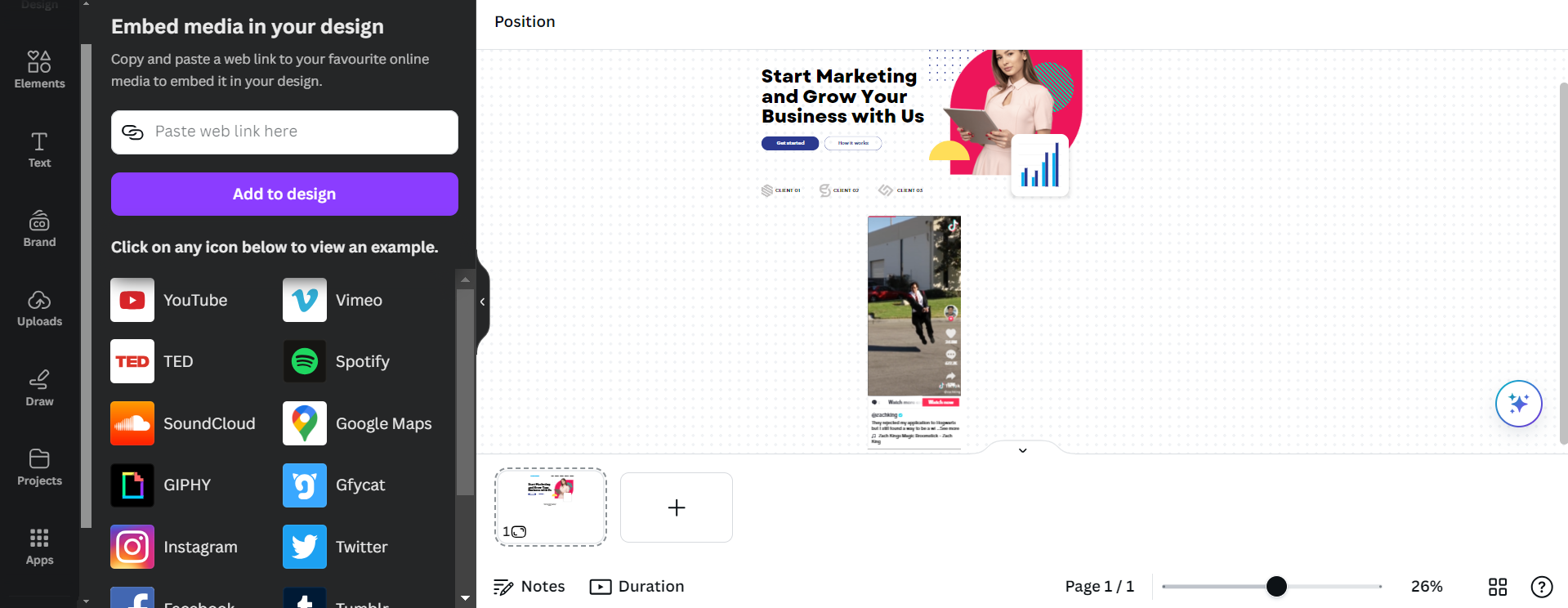
5. Place the Video in Your Design
Drag and drop the newly embedded video to the perfect spot on your design. Make sure it stands out but doesn’t overwhelm your other fantastic content. Balance is key, my friend.
6. Update on Shopify Using Canvify
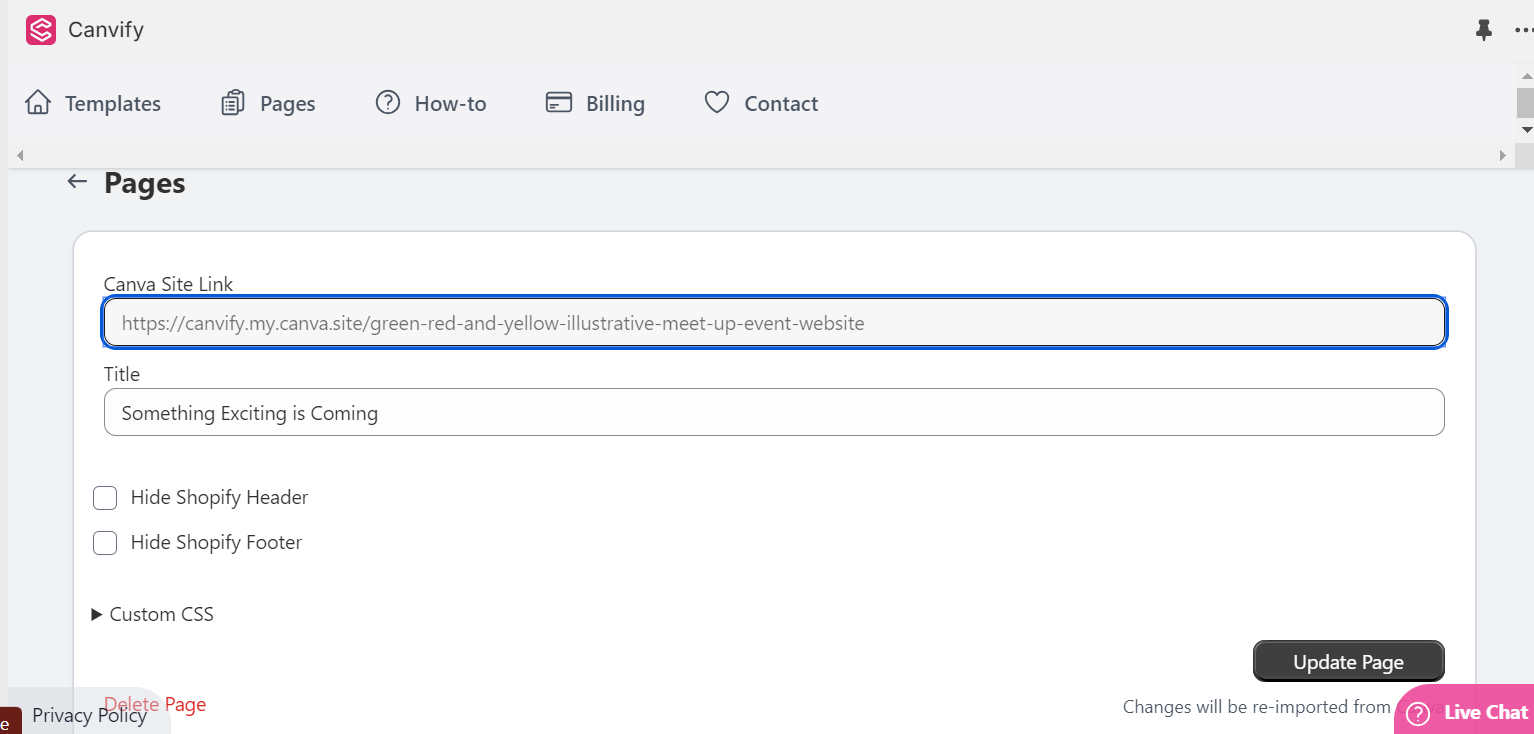
Now for the magic moment. Head over to Canvify and import your Canva design. If you already have a design in your Shopify store and just made updates, simply hit “update” in Canvify.
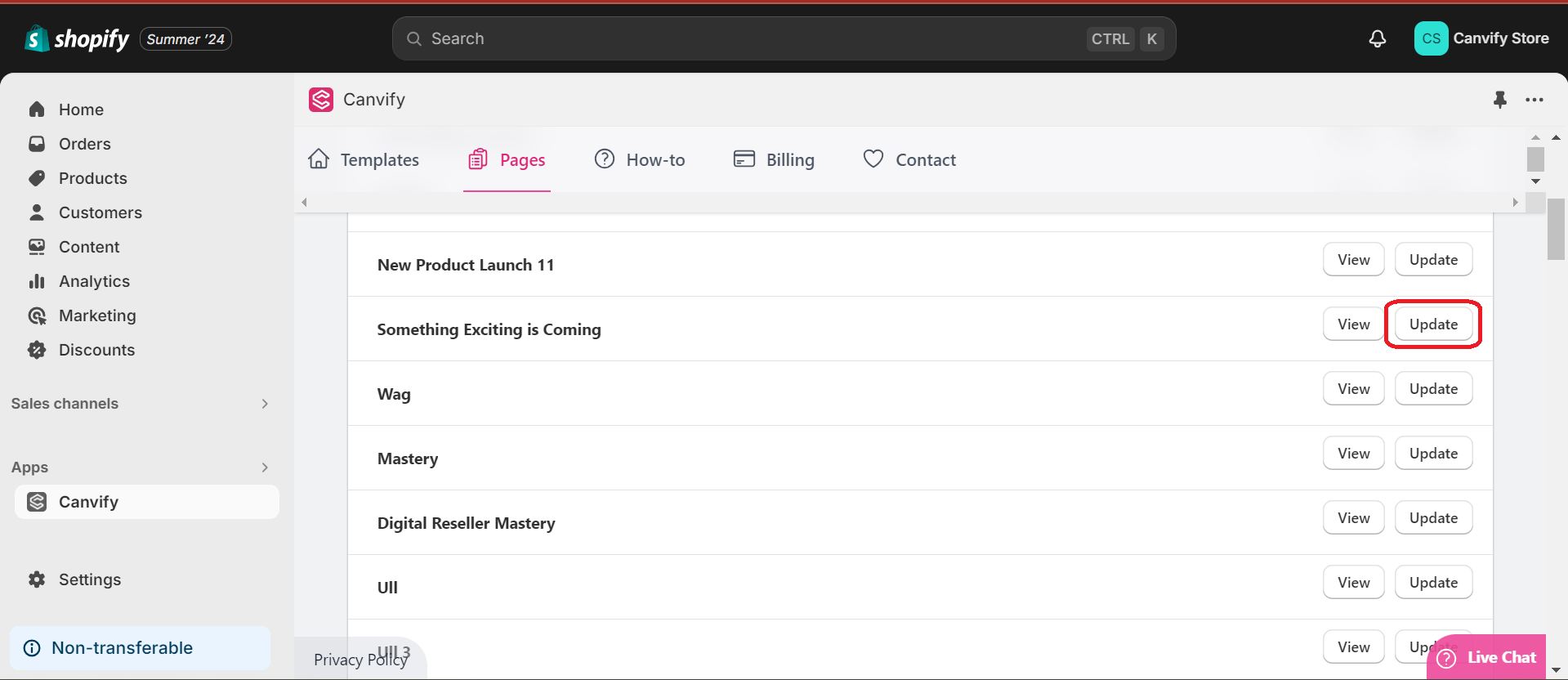
Click the update button (make sure the Canva site URL is placed in the box already, otherwise update it) and voilà, your TikTok video is now live on your Shopify page.
Ready To Do It Yourself?
If you don’t have Canvify already, you can try it for free on Shopify app store. With Canvify, you don’t need a developer. No more shelling out hundreds or thousands of dollars to get simple updates done. No more waiting weeks for changes. You can do it all yourself, straight from Canva. Update your Shopify store in real-time, make it dynamic, and keep your content fresh and engaging. Because who has time for old-school development when you’ve got Canvify?
So, there you have it. A step-by-step guide to embedding a TikTok video into your Canva design and getting it live on your Shopify store. It’s simple, it’s quick, and most importantly, it’s free of developer drama. Happy designing!