How To Add Music To Shopify - Spotify, Apple Music, SoundCloud Shopify integration

On this page
Adding music or podcasts to your Shopify store can be a game-changer. Whether you’re a musician selling merchandise, a podcaster promoting episodes, or an eCommerce brand looking to create an immersive shopping experience, embedding audio content can help engage your audience and boost conversions.
This guide explores how to integrate Spotify, Apple Music, SoundCloud, and other streaming services into your Shopify store, with a seamless solution to simplify the entire process.
Why Add Music to Your Shopify Store?

Music and podcasts can significantly enhance your store’s atmosphere and customer experience:
- Build Emotional Connections: The right audio can set the tone for your brand and evoke emotions.
- Promote Your Content: Showcase your latest tracks, episodes, or playlists directly on your store.
- Increase Dwell Time: Engaging content keeps visitors on your site longer.
Traditional Methods of Adding Music to Shopify
Typically, adding music from platforms like Spotify or Apple Music involves copying and embedding HTML codes. Let’s break it down by platform:
Spotify
- Open your Spotify app and navigate to a song, playlist, or podcast.
- Click on the “Share” option and select “Embed Code.”
- Copy the code and paste it into your Shopify HTML editor.
Apple Music
- Go to Apple Music’s web player and find the track or playlist you want to share.
- Use the “Embed” option to generate the code.
- Paste the code into your Shopify theme editor or page.
SoundCloud
- Visit the SoundCloud track, playlist, or profile you want to embed.
- Click “Share” and then “Embed.”
- Copy the HTML code and paste it into your store.
While these methods work, embedding audio manually from multiple platforms can be tedious, especially if you want to regularly update or showcase diverse audio content.
| Method | Setup method | HTML required | Supported content | Maintenance | Display flexibility | Best use |
|---|---|---|---|---|---|---|
| Spotify native embed | Copy Spotify's embed code into Shopify | Yes | Supported Spotify tracks, albums, playlists, or shows | Manage each platform embed separately | Spotify's native player options | A small number of Spotify-only embeds |
| Apple Music native embed | Generate an Apple Music embed and paste it into Shopify | Yes | Supported Apple Music tracks, albums, or playlists | Manage each platform embed separately | Apple Music's native player options | A small number of Apple Music embeds |
| SoundCloud native embed | Copy SoundCloud's embed code into Shopify | Yes | Supported tracks, playlists, or profiles | Manage each platform embed separately | SoundCloud's native player options | A small number of SoundCloud embeds |
| EmbedAny | Paste a supported public URL into the Shopify app | No manual HTML | Supported audio, playlists, podcasts, and profiles | One app workflow across supported sources | Widget and card formats described in the app | Stores embedding content from several sources |
A Better Way: Use EmbedAny for Audio Integration
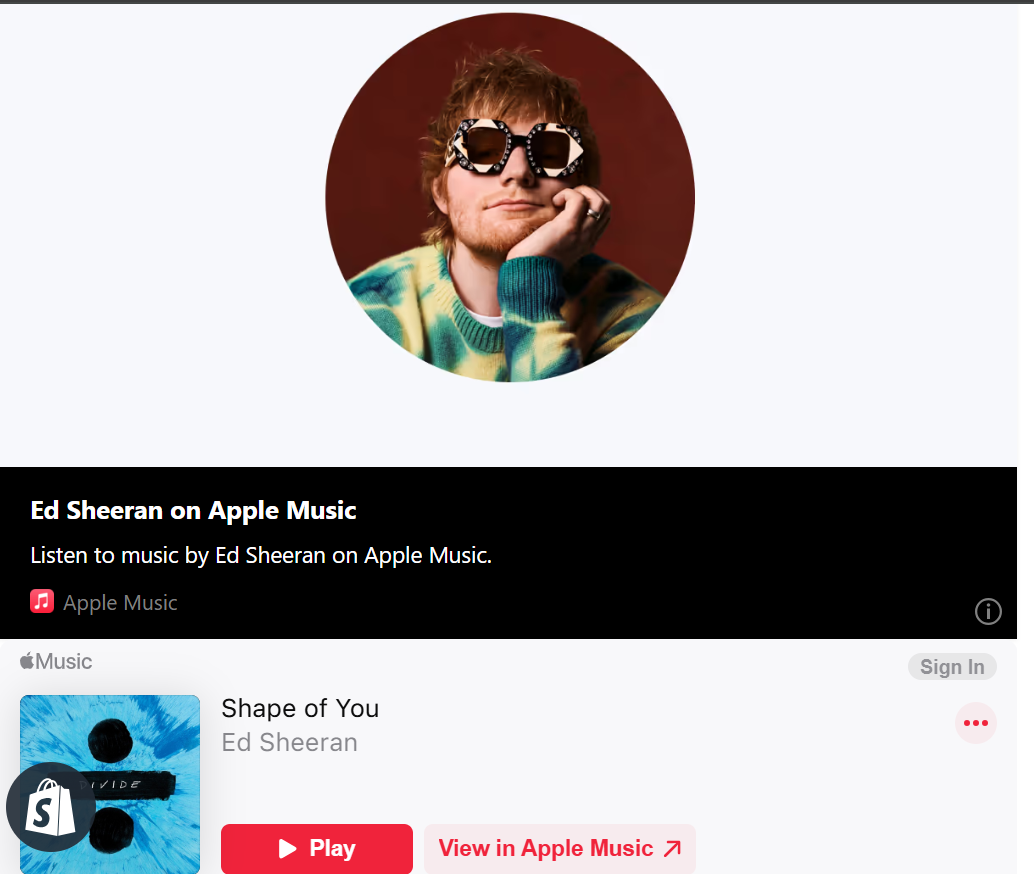
With EmbedAny, you can embed music, podcasts, user profiles, and more from over 800+ websites—including Spotify, Apple Music, and SoundCloud—using nothing more than a link.
How EmbedAny Simplifies Music Integration
- No HTML Codes: Just paste the link, and EmbedAny automatically generates the widget.
- One-Click Solution: Save time by managing all your embeds in one app.
- Customizable Displays: Showcase playlists, individual tracks, or even user profiles as visually appealing cards or widgets.
- Cross-Platform Compatibility: Embed content from various platforms on a single page effortlessly.
Use Cases for EmbedAny
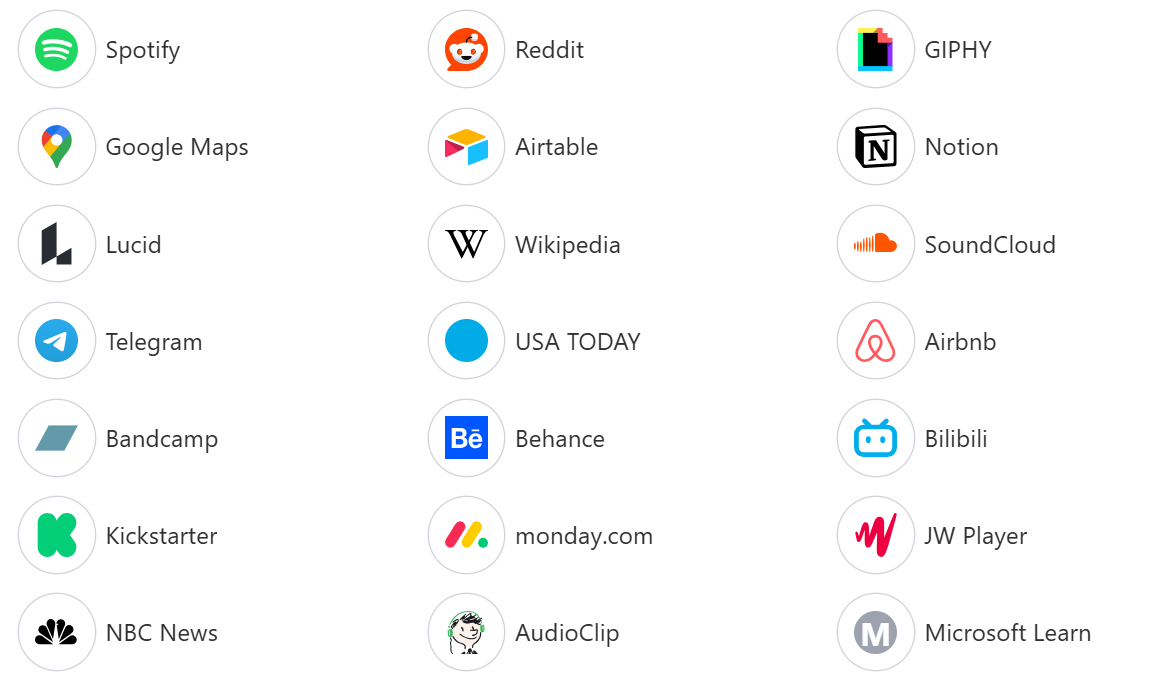
Add a Spotify Playlist for Ambiance
Easily display curated playlists that reflect your brand’s vibe. For instance, a fitness store could embed a high-energy workout playlist, while a café shop could add a chill acoustic collection.
Showcase a Podcast Episode
If you run a podcast, highlight the latest episode or embed an entire podcast profile for visitors to explore.
Feature Artist Profiles
Artists and musicians can display their Spotify or SoundCloud profiles as cards, creating a visually dynamic way to promote their work.
Promote User-Generated Content
Get creative by embedding playlists or tracks created by your community. It’s a great way to involve your audience and make your store feel more interactive.
Steps to Embed Music in Shopify Using EmbedAny
- Install EmbedAny: Add the app to your Shopify store from the EmbedAny website.
- Copy the Link: Copy the URL of the track, playlist, podcast, or user profile you want to showcase.
- Paste in EmbedAny: Open the app and paste the link into the widget generator.
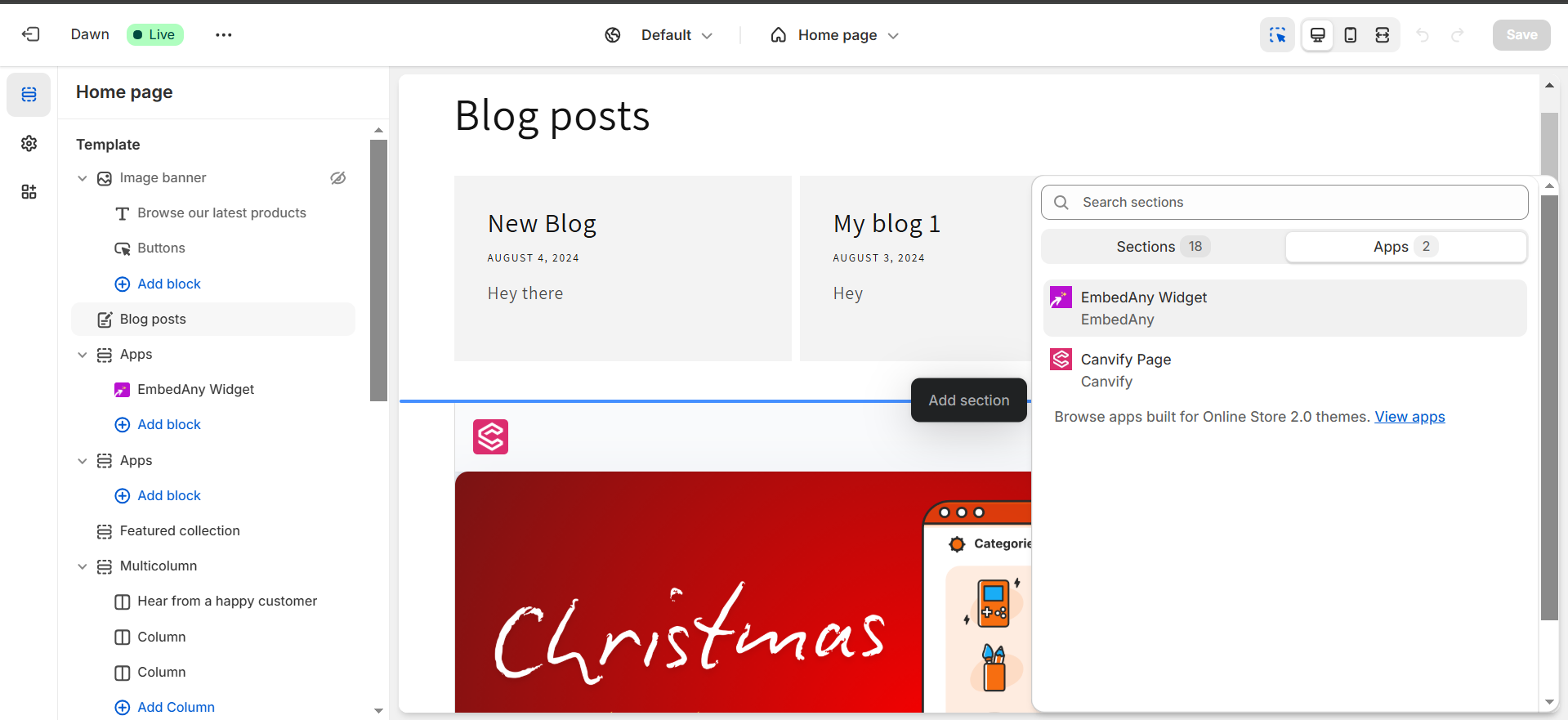
- Customize and Embed: Adjust the appearance of your widget and embed it on your Shopify page with a single click.
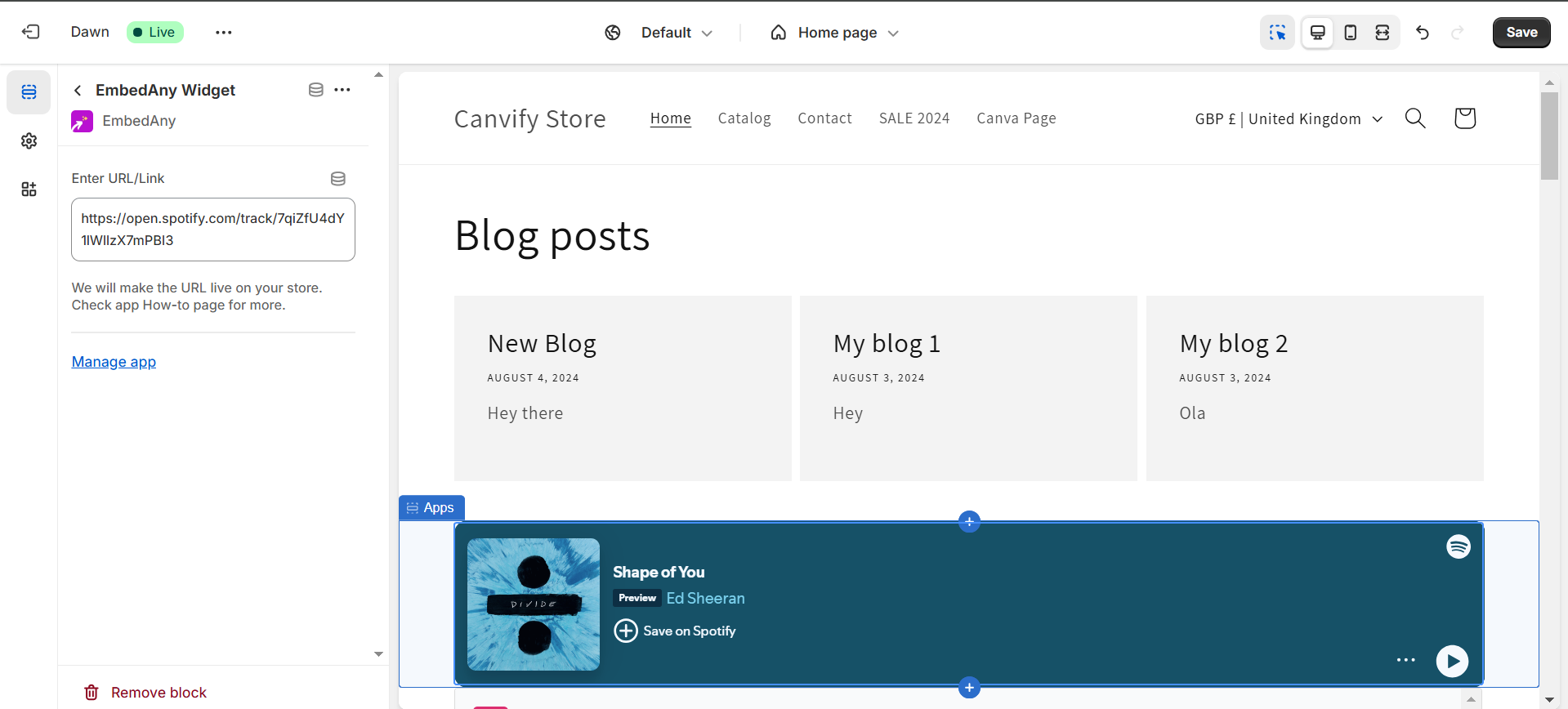
Here is a detailed tutorial on how to use EmbedAny.
Why Choose EmbedAny?
EmbedAny not only simplifies embedding music but also opens the door to countless possibilities. With support for over 800 platforms, you can integrate:
- Music and podcast widgets
- Video players
- Social media feeds
- User profiles and more
The app ensures your store looks modern, interactive, and engaging, all while saving you time and effort.
Conclusion
Embedding music into your Shopify store has never been easier. Whether you want to showcase your latest Spotify playlist, highlight a podcast, or display user-generated tracks from SoundCloud, EmbedAny streamlines the process. Say goodbye to juggling HTML codes and hello to effortless integration.