How to Convert Canva Design into Shopify Store? Import Canva Site to Shopify!

You can build and publish Shopify pages through Canva. Yes, you heard it right. So many people who use Canva for graphic design never noticed that Canva gives you an option called ‘Publish as website’. Canva quickly turns your Canva design into a landing page and gives you a working URL for it as well.
BUT… there is no real use case for it if you can’t use that website design on your actual website. Here is where things get spicy. You can LITERALLY export your Canva design into Shopify and convert it into a working Shopify store with only a few clicks! 🤯
How to Import Canva Website Design to Shopify?
There is no direct way on Canva that lets you connect your Shopify and export designs but there is an even simpler way. A Shopify plugin called Canvify. You can find it and install it for free from Shopify App Store. This app takes your Canva website link and converts it to Shopify within a few seconds.
With Canvify, your designed in Canva Shopify store will be:
- Responsive & fast
- Interactive and have 3D animations from Canva
- SEO capabilities
- Mobile friendly UI optimization
- Complete Shopify features that you get through other methods
Here’s a step-by-step guide on how to convert a Canva design into a Shopify store using Canvify!
1. Design Your Landing Page in Canva
Nothing changes here. It’s your usual Canva design process. All you need is a template to begin with to make things easier. You can find templates on Canva or get started from templates provided by Canvify when you install it on your Shopify store.
Canvify has a huge range of templates that are specifically customized to smoothly convert Canva design into a Shopify store. Using a template from Canvify means less work for you in comparison to finding your own templates and making adjustments (if there are problems with your Canva design).
Customize your website, add your brand colors, logos, product images, product descriptions, and other things you want. You’re almost done ALREADY!
Preparing Your Canva Design for Export
Once your landing page design is ready, it’s time to prepare it for the grand migration to Canvify. Can’t wait to see it live on both desktop and mobile!
Publish Canva Design As Website
When you’ve finished your design, go to Share and find the ‘website’ option.
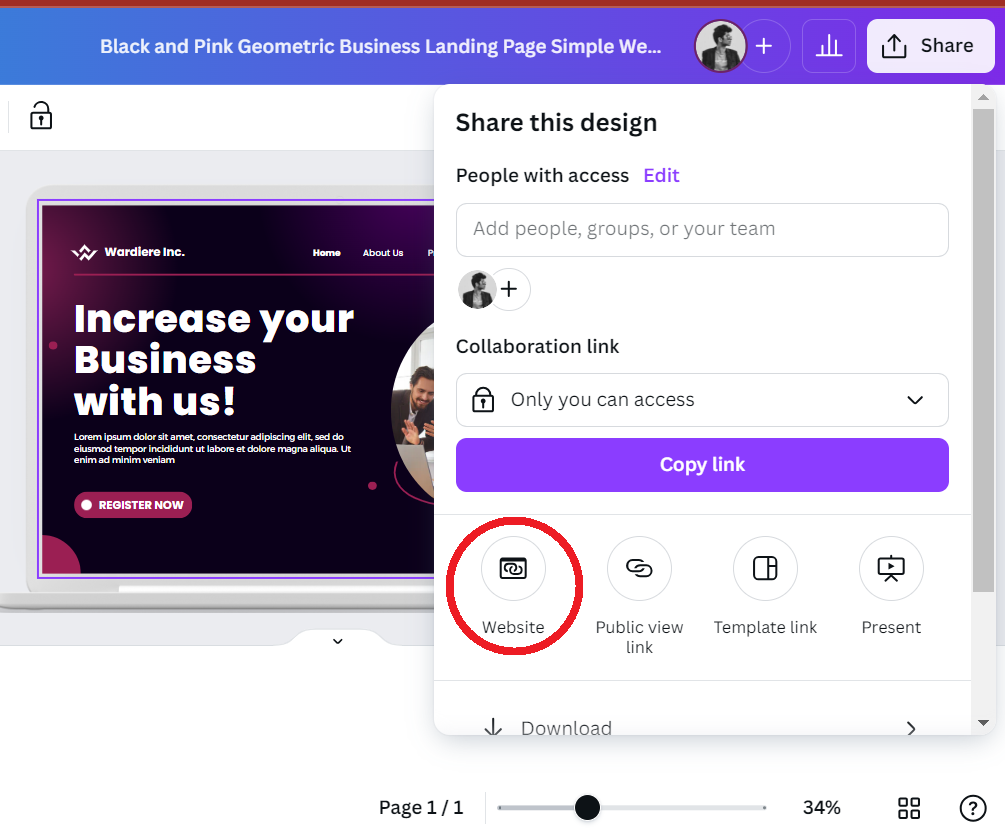
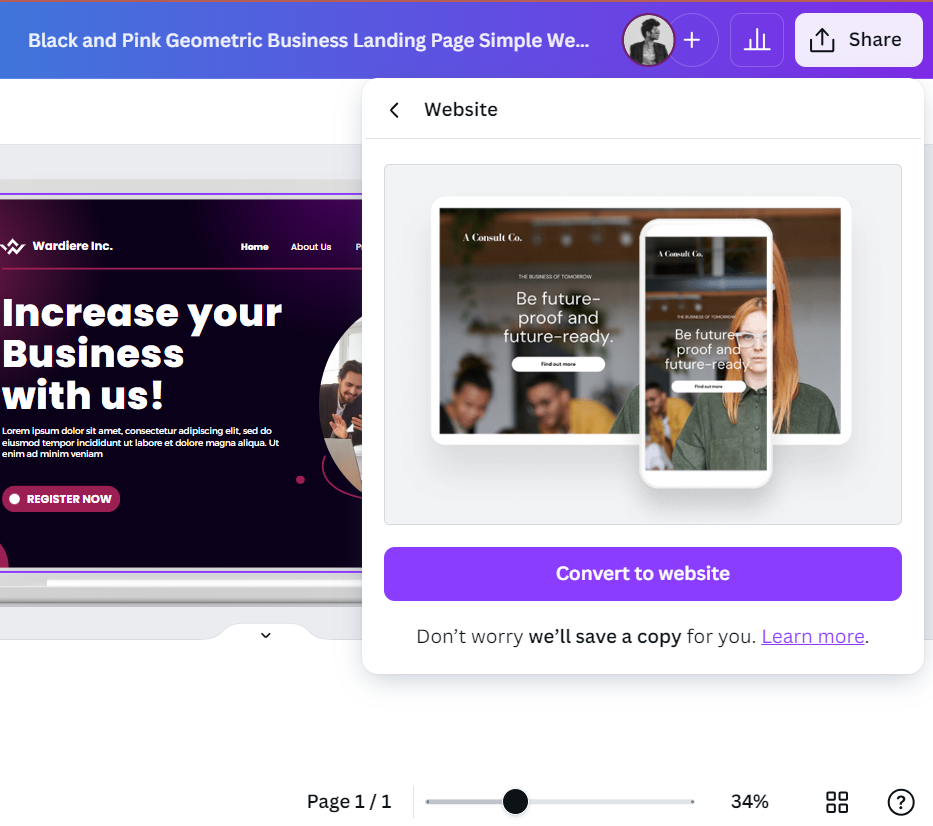
Click on the Website option. It will give you the following button: ‘Convert to website’. Clicking it will convert your design into a web page.
Publish the website and BOOM!, you now have your website link ready!
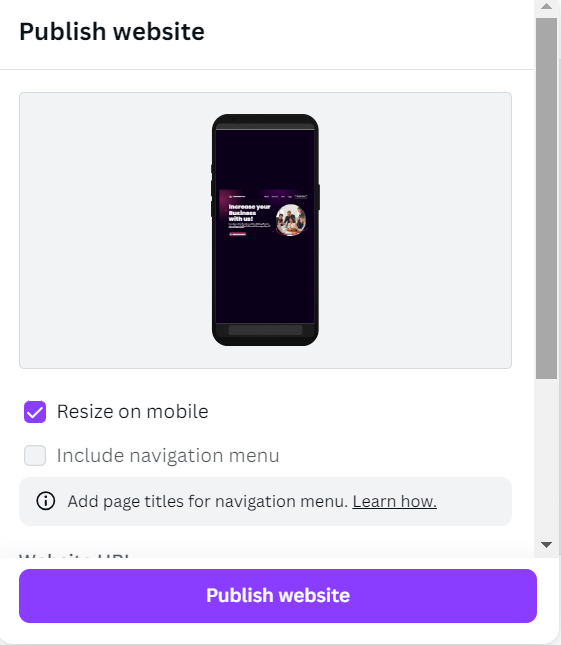
You can view your web page through Canva’s auto-generated URL. To connect your own domain and use it for your Shopify store, there is one last thing that remains.
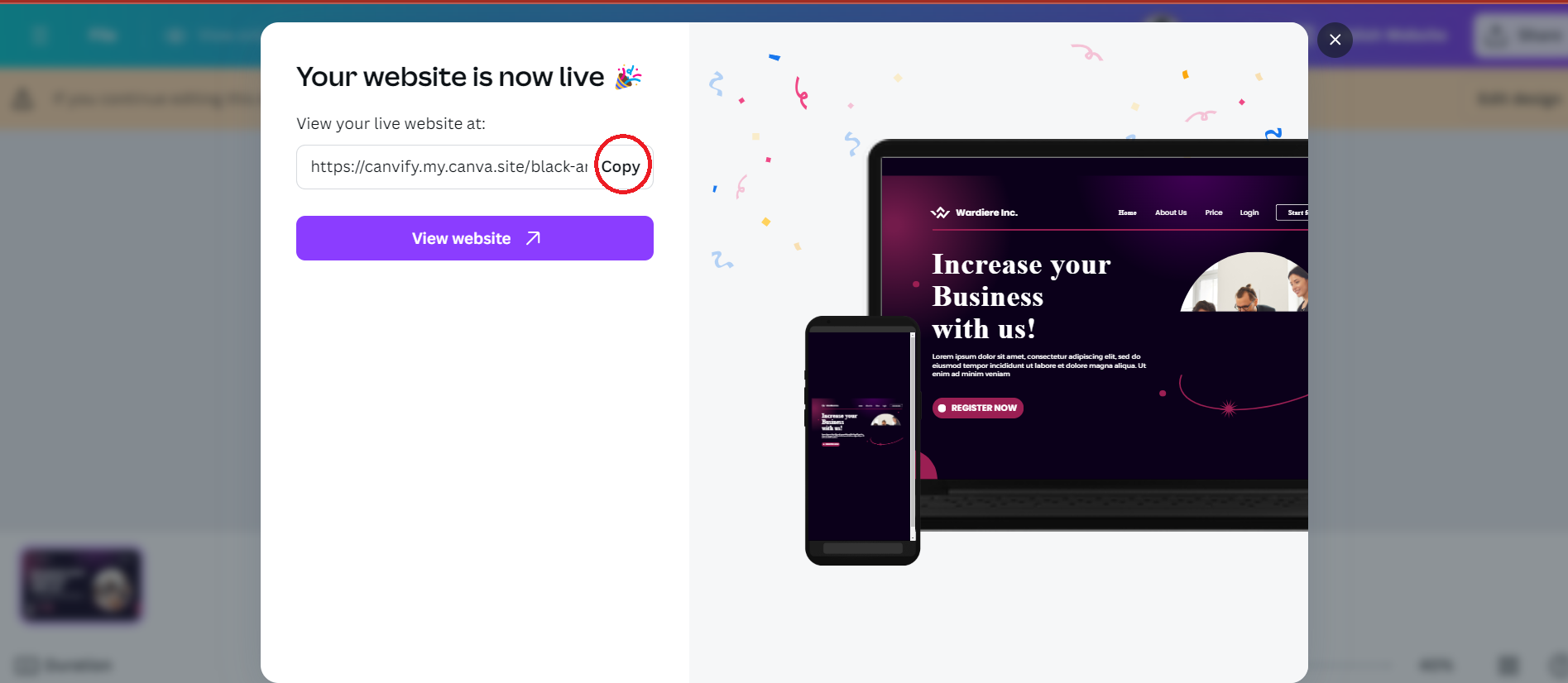
Importing Your Canva Site to Shopify via Canvify
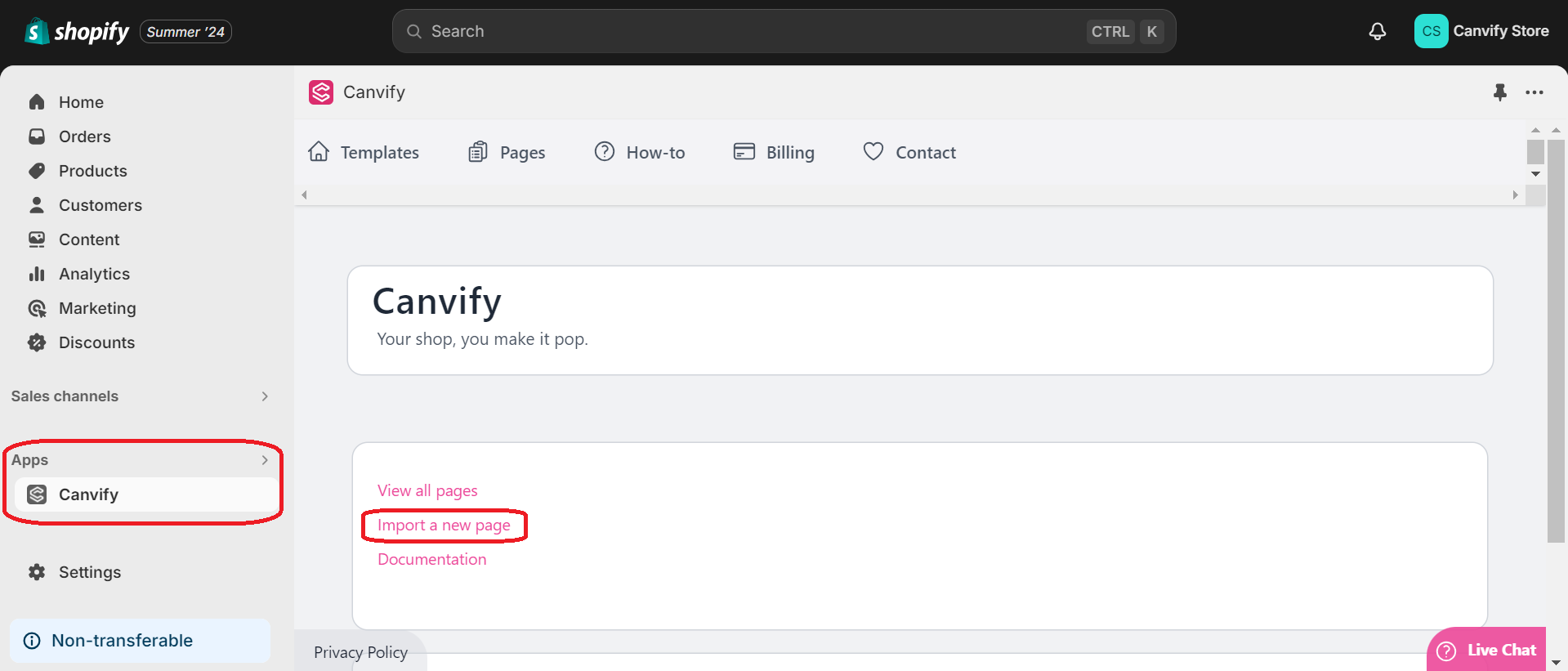
It’s time to import your Canva website into Shopify using Canvify. If you’ve downloaded Canvify on your Shopify store, head over to apps > Canvify > Import a page button.
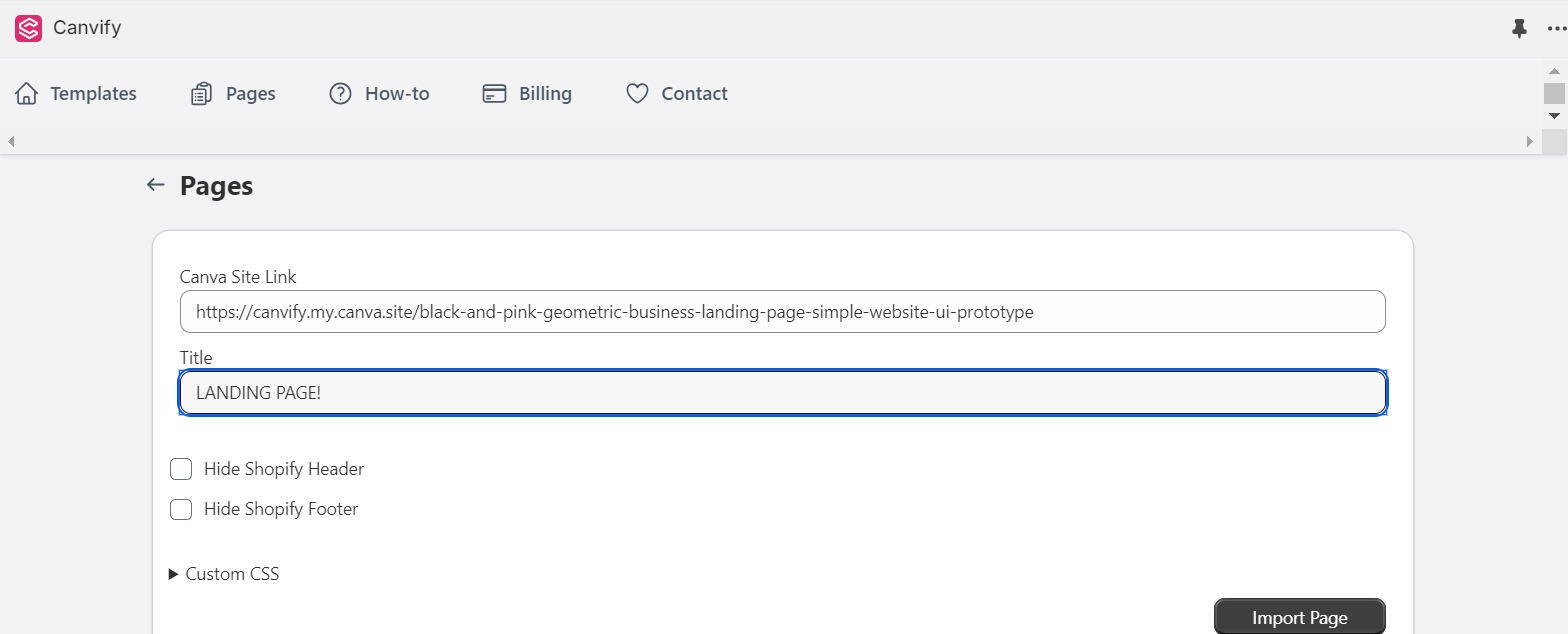
Paste the Canva website link in the link section and give a nice name to your page. Hit the ‘Import’ button.
Your Shopify store is live! No wands required, just a few clicks. Seriously, even Harry Potter would be impressed by this level of simplicity.

Conclusion
Stop waiting. Start creating with Canvify and launch your Shopify store today! With Canvify, you’ve got the power to build, customize, and launch a stunning Shopify store in no time. So, what are you waiting for? Dive in and make your web design dreams a reality!
Get Canvify today on Shopify App Store
Frequently Asked Questions
Is the Shopify page created using Canvify responsive?
Yes. A Shopify page imported with Canvify is responsive and retains the animations and objects added through Canva. Always preview the finished page on desktop and mobile before publishing.
How can I design and add multiple pages using Canvify?
Design each page separately in Canva, or duplicate a base design and adapt each copy. Publish and import every page into Canvify separately, then link the resulting Shopify pages together. For setup help, use Canvify's in-app how-to section or email the Canvify team.
Can I switch between different pages through Canvify?
Yes. After importing a page, copy its Shopify URL and add that URL to the relevant buttons in your Canva designs. Repeat this for the other pages, republish the designs, and update them in Canvify.
What if I need to change and update my page?
Edit the original Canva design, republish the Canva website, and then use the update action in Canvify so the Shopify page reflects those changes.
How can I add TikTok, Instagram, maps, and other embeds to my website?
Add supported links such as TikTok, Instagram, Google Maps, and YouTube to the Canva design, then republish and update the page in Canvify. The in-app how-to section and Canvify support can help with a specific embed.