Embedding Instagram, YouTube, TikTok, and Maps to Your Canvify Page
Embedding content is one of the easiest ways to make your Canva designs feel interactive and alive.
With recent updates from Canva, you now have two ways to embed external content into your Canva website designs that are imported into Shopify using Canvify.
This guide explains both methods.
Method 1: Embed Content Using Canva’s Native Embed Feature
Canva recently introduced a built-in Link Types feature that allows you to convert regular links into embedded widgets directly inside your design.
This is now the fastest and simplest way to embed content.
What You Can Embed Using Canva’s Native Feature
You can embed content from platforms like:
- Instagram posts & reels
- YouTube videos
- TikTok posts
- Google Maps locations
- Tweets, videos, and many other supported platforms
How It Works: Links vs Embeds in Canva
Copy the link to the content you want to embed (e.g an Instagram post or YouTube video).
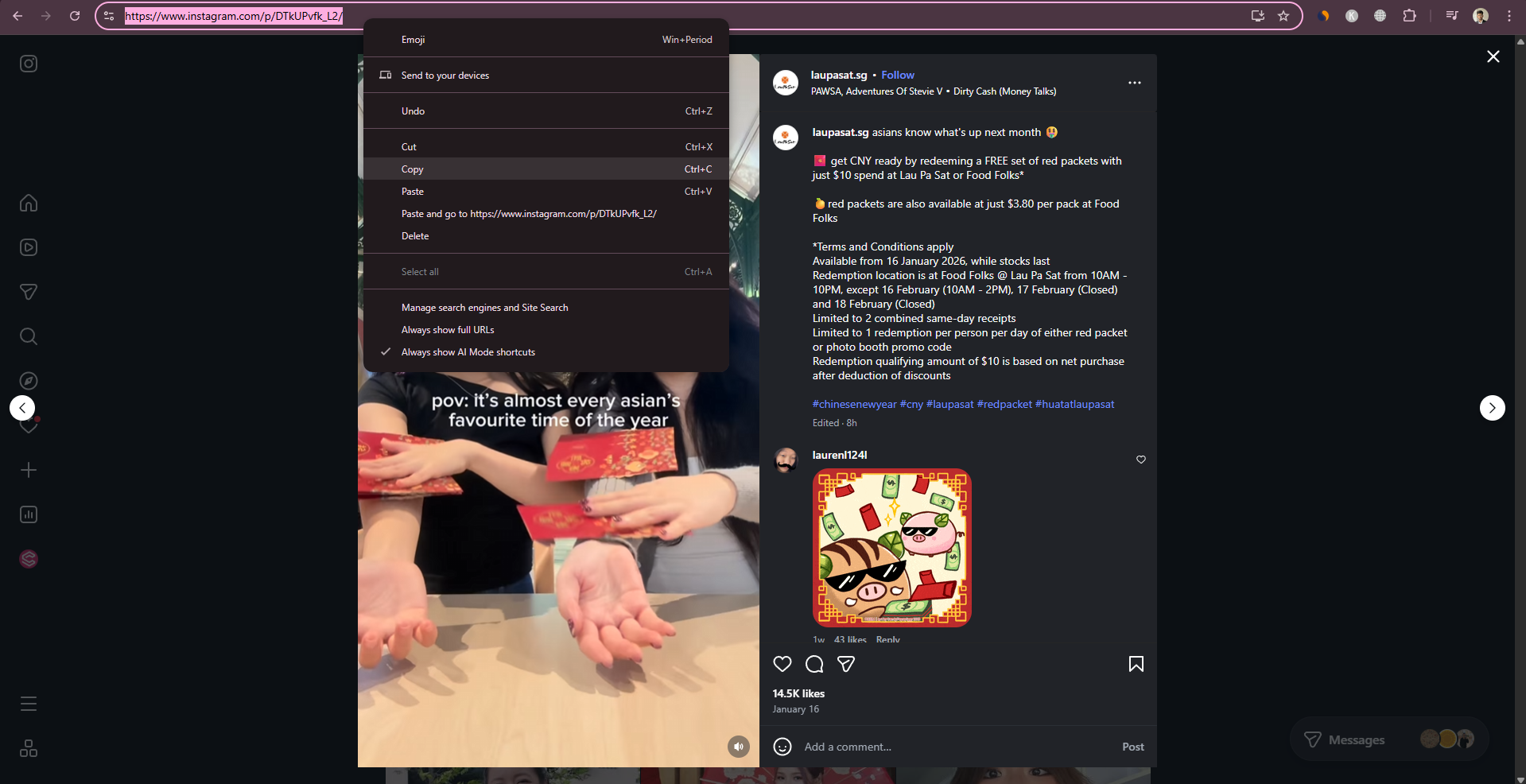
Paste the link into your Canva design and it becomes a widget.
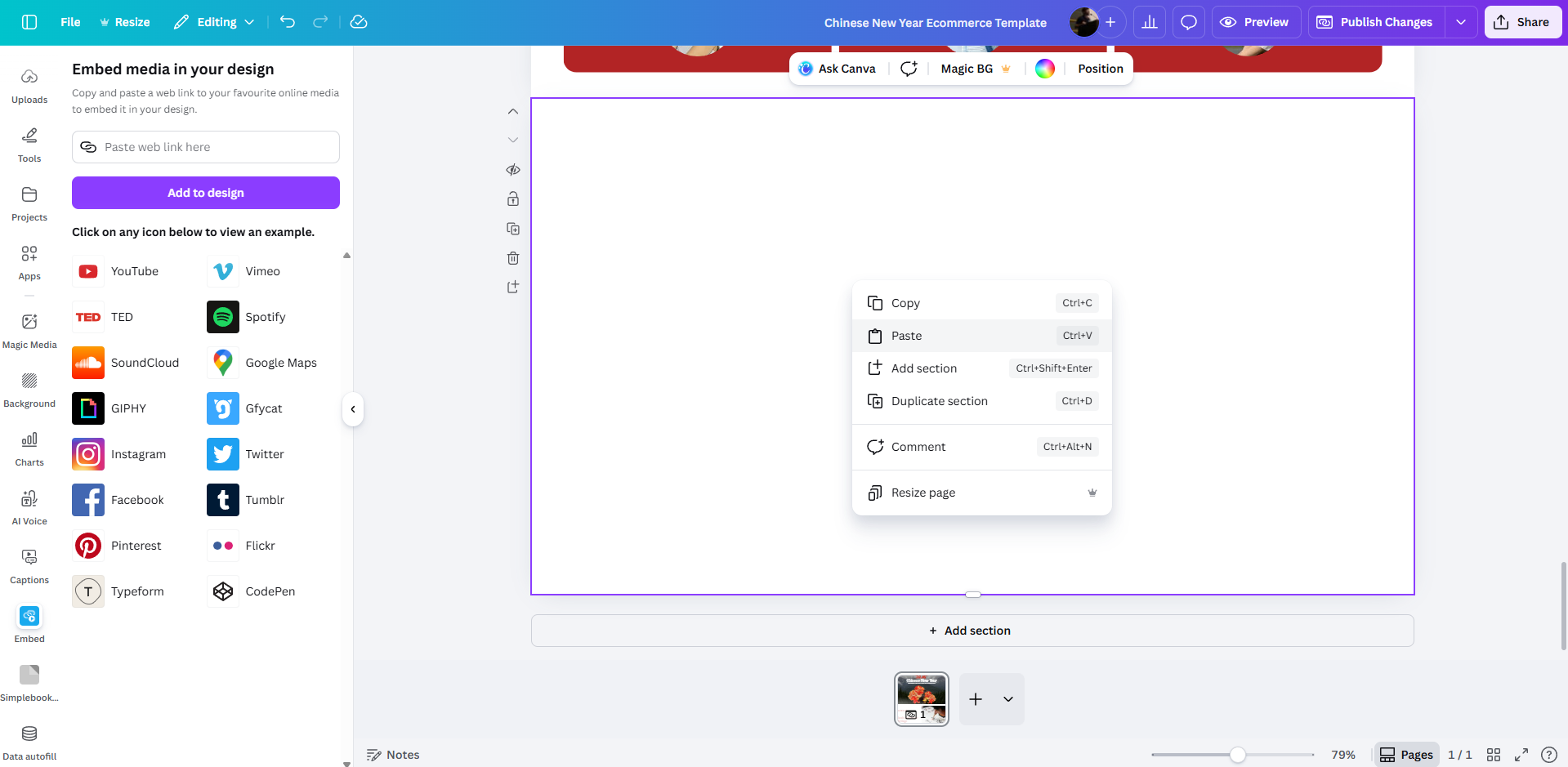
Here is how it looks.
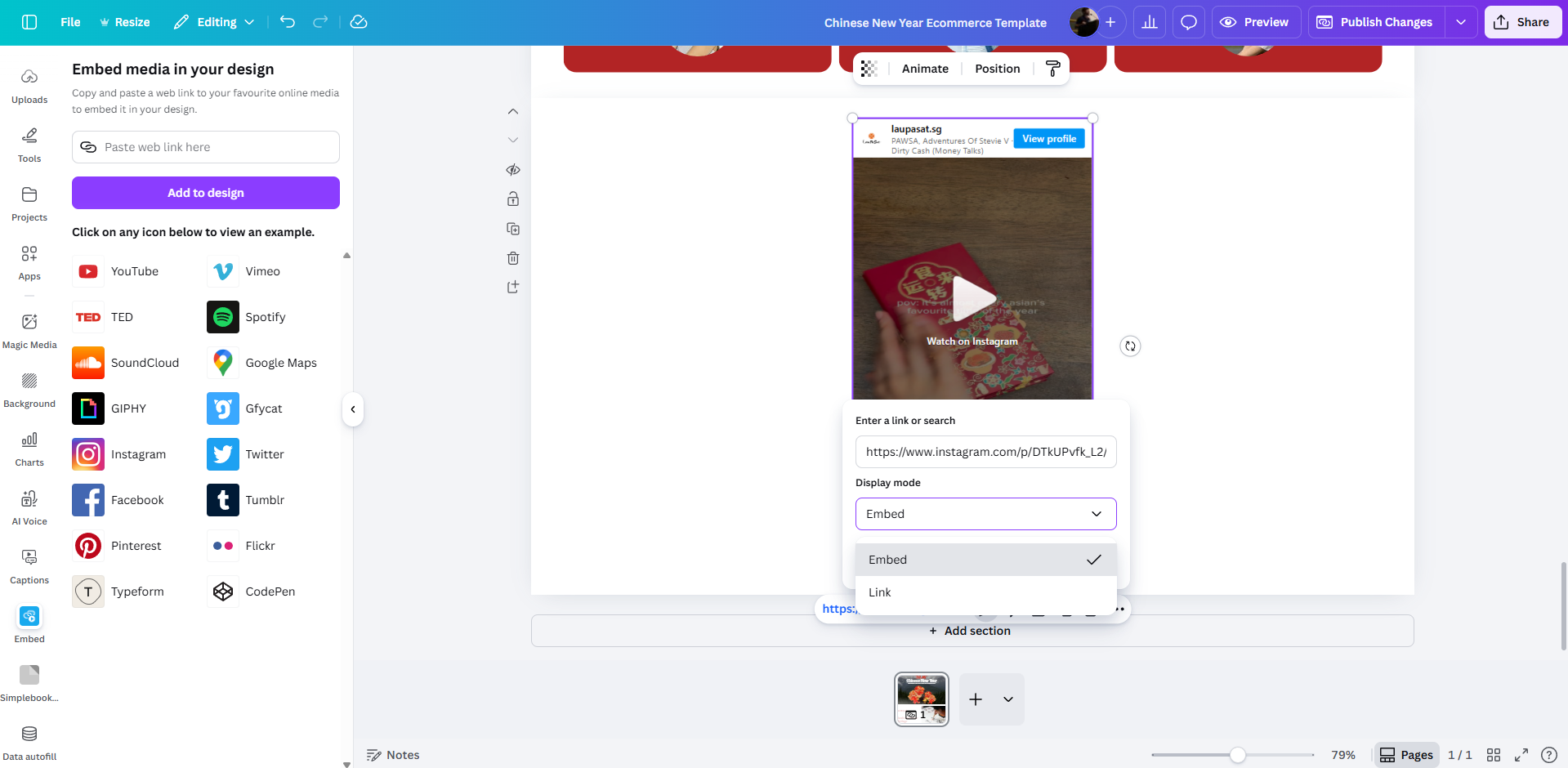
If the pasted URL does not automatically become a widget, you can click on edit URL, and change the link type from Link to Embed.
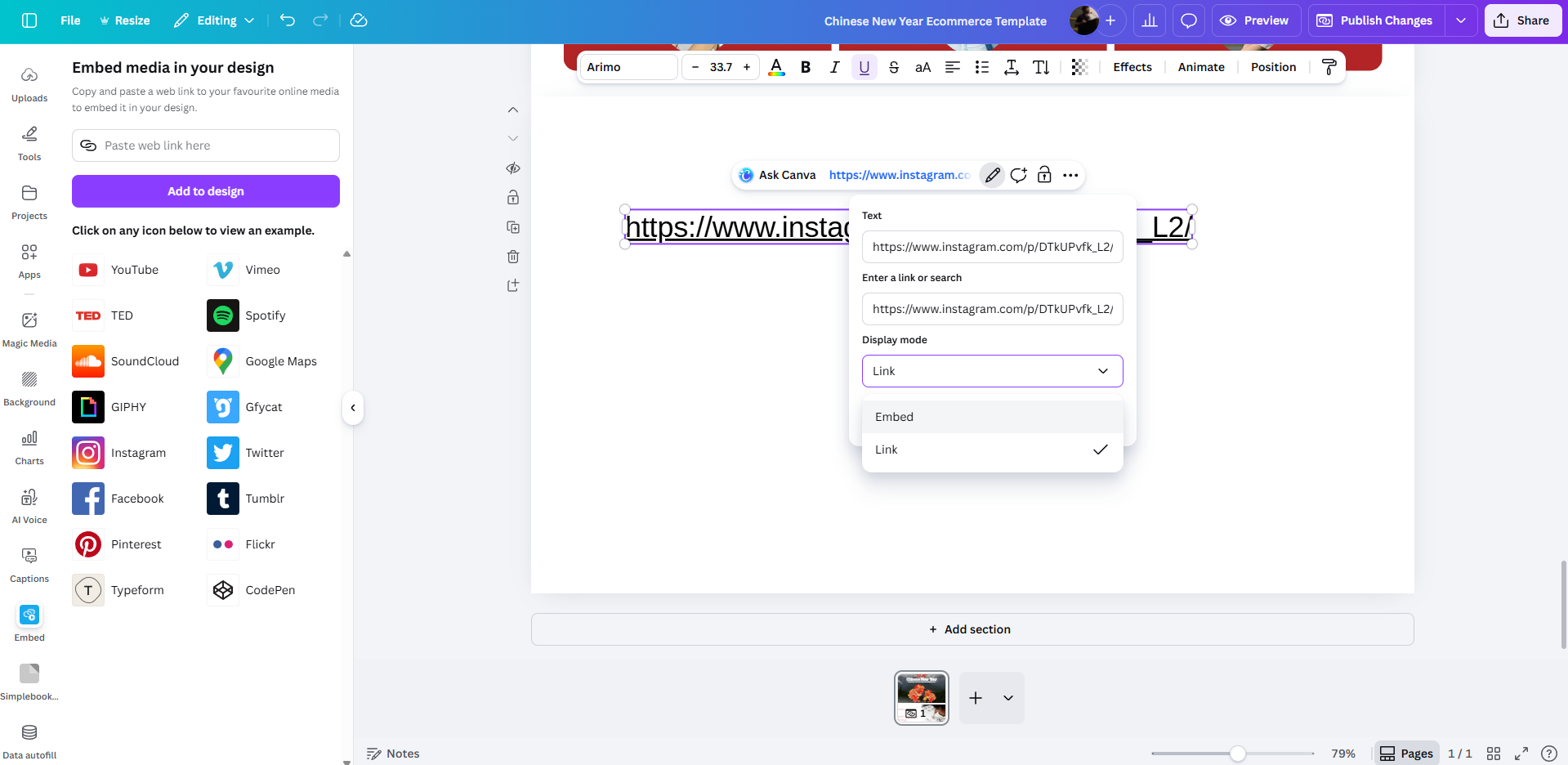
Once you switch it to Embed, Canva instantly converts it into an interactive widget.
Final Result!
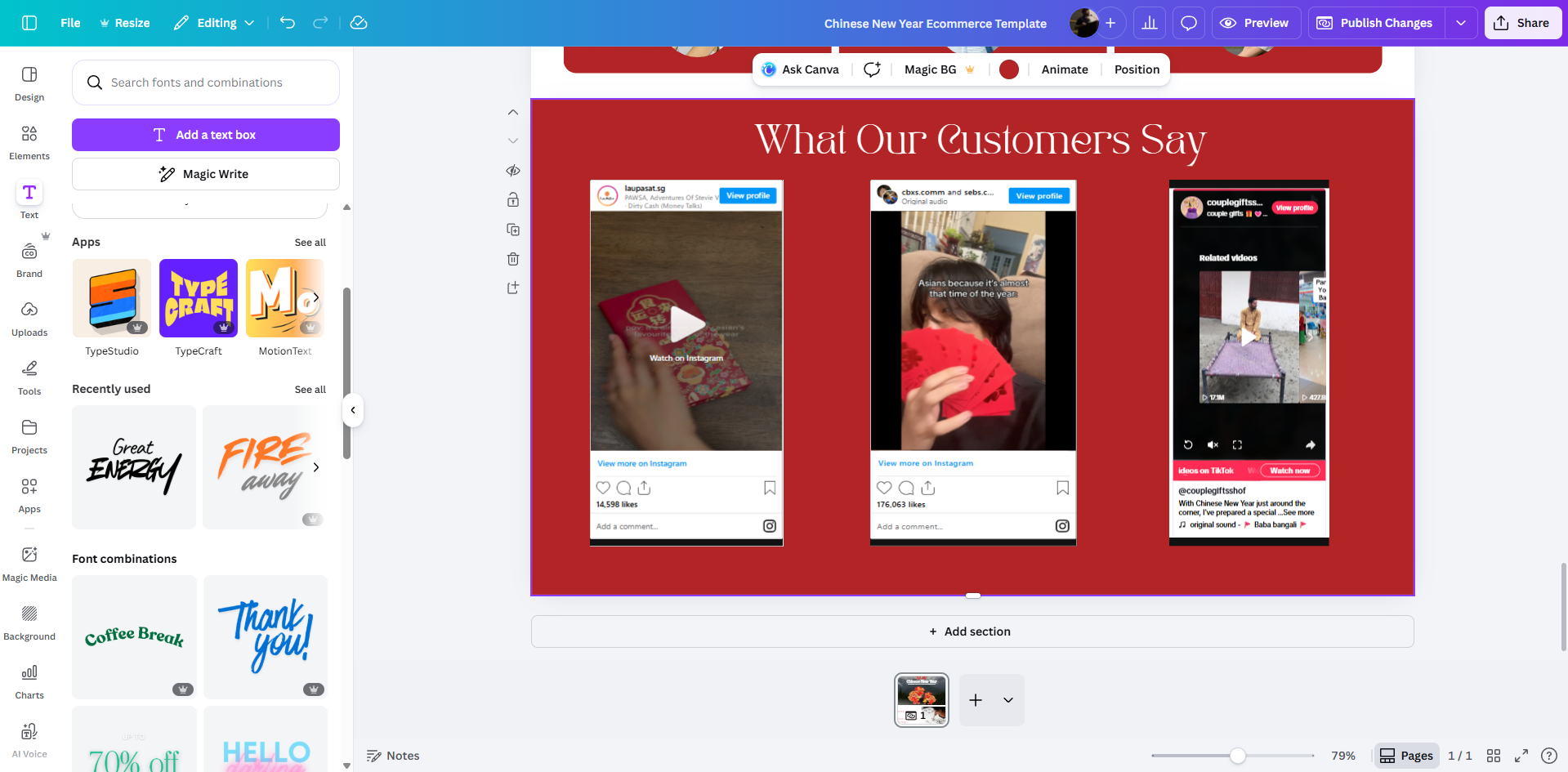
When to Use Canva’s Native Embed Feature
Use this method if you want:
- Quick embeds
- Clean, simple setup
- Social posts, videos, or maps inside your design
- No additional configuration
For most users, this is the recommended approach.
Method 2: Embedding Content Using Canva’s Embed App
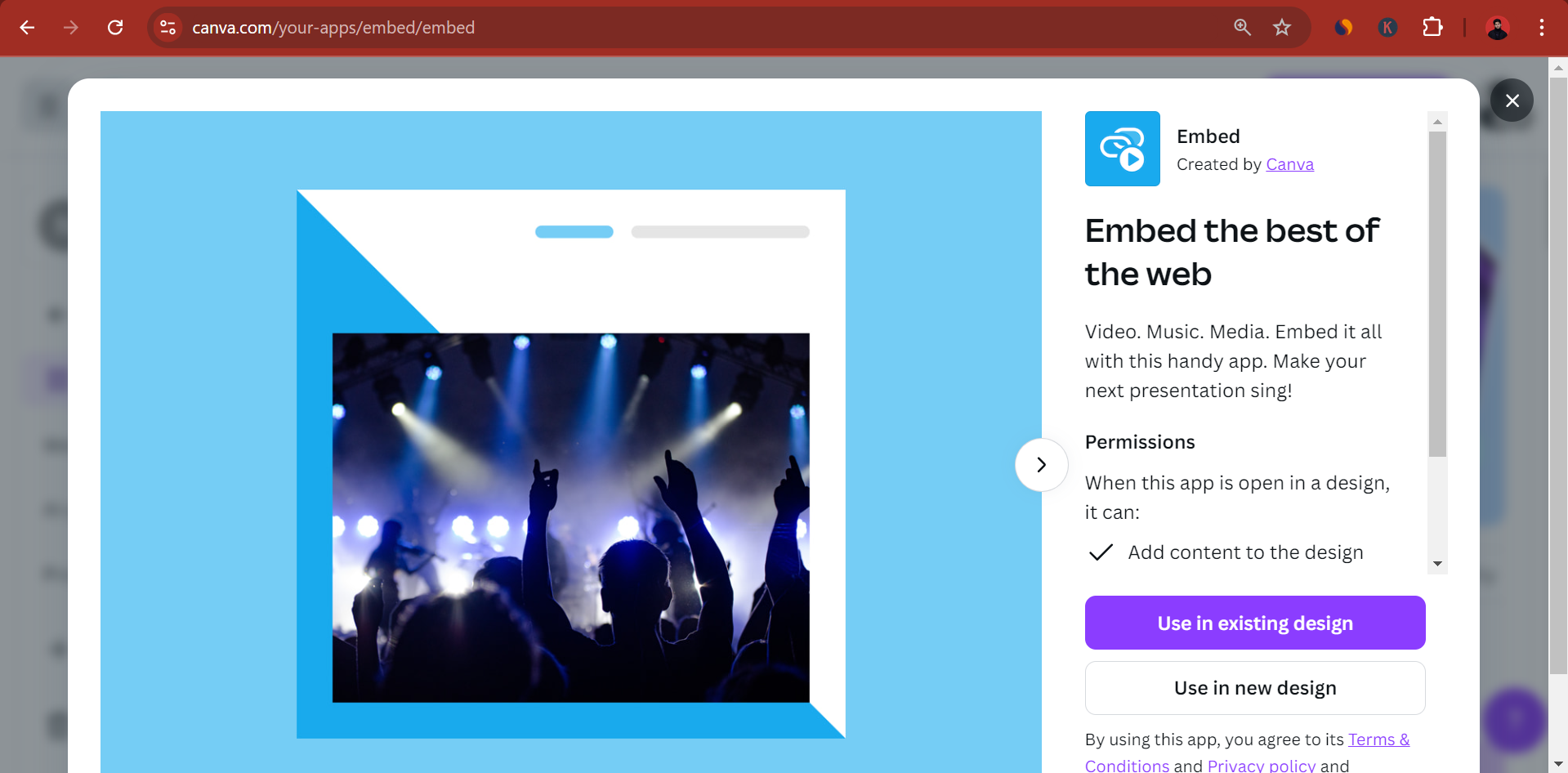
Before Canva introduced native embeds, it provided an Embed App to support external content embedding.
This method is still available but serves the same purpose. If you’re unable to use Canva’s built-in embed feature, you can rely on this one.
How the Canva Embed App Works
Open your Canva design, and navigate to Apps on the left features pane.
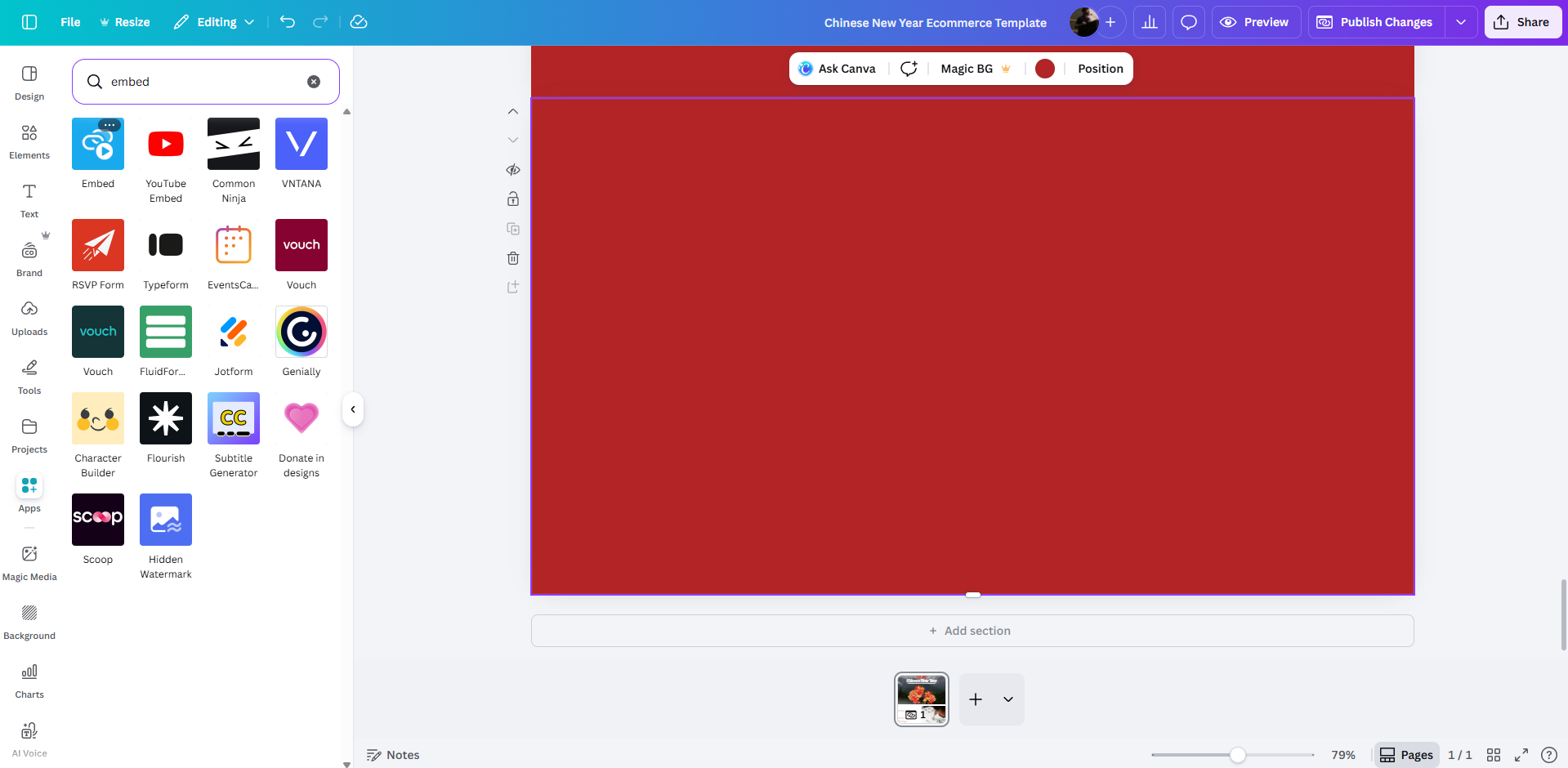
Search for Embed app and open it.
Paste your URL in the field and click add to design. The URL gets converted into a widget and gets added to your Canva design.
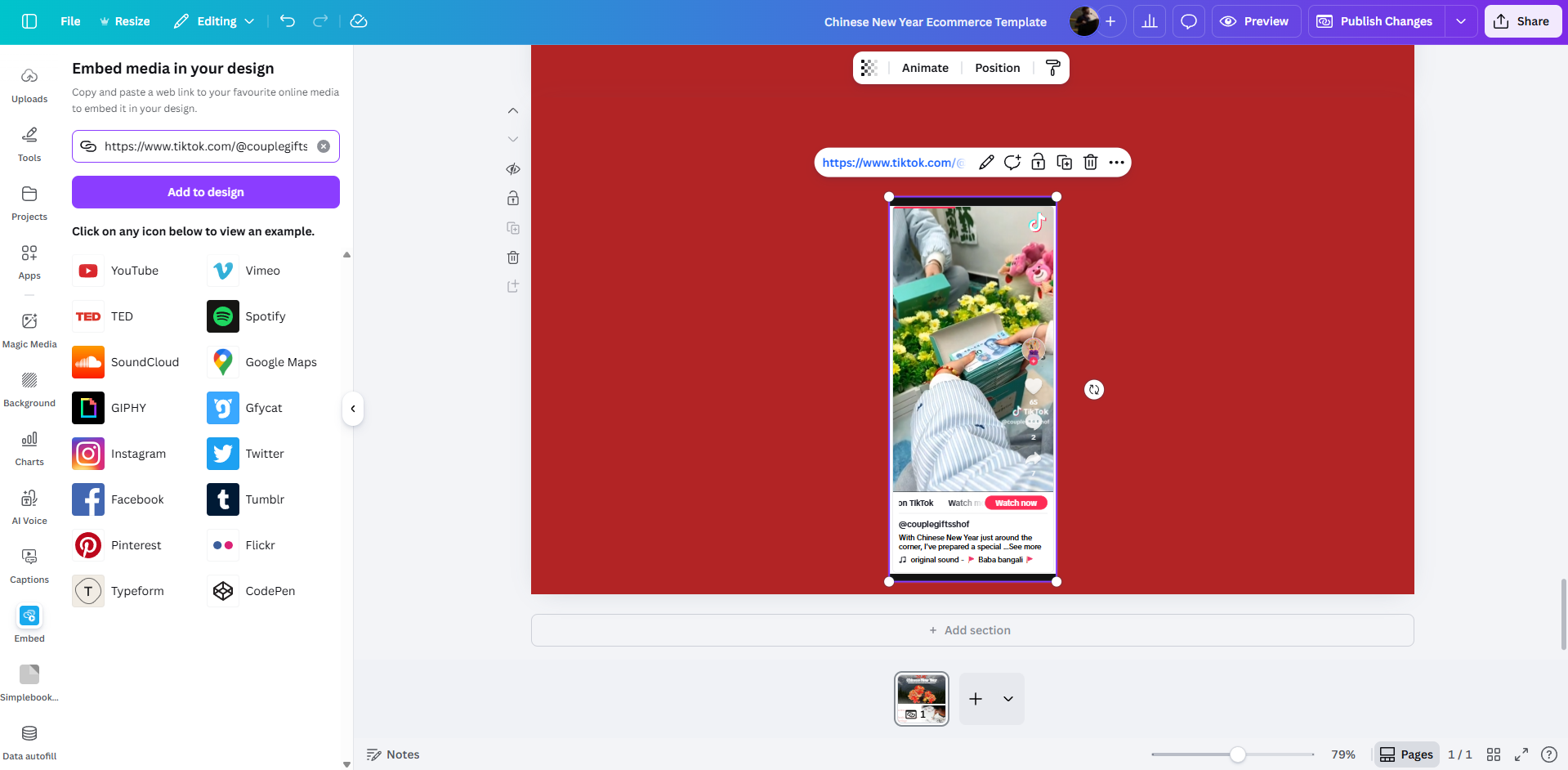
This method is the same as Canva’s built-in link embed. However, if that doesn’t work for some reason, you can rely on the embed app to save the day.
Apply these methods for any type of link you want to embed in Canva website designs.
Happy Selling!