How to Create a Canva Website and Import It into Shopify
This guide walks you through the complete process of creating a website design in Canva and importing it into Shopify using the Canvify app.
Step 1: Create a Website Design in Canva
Start by heading over to Canva and creating a new website design.
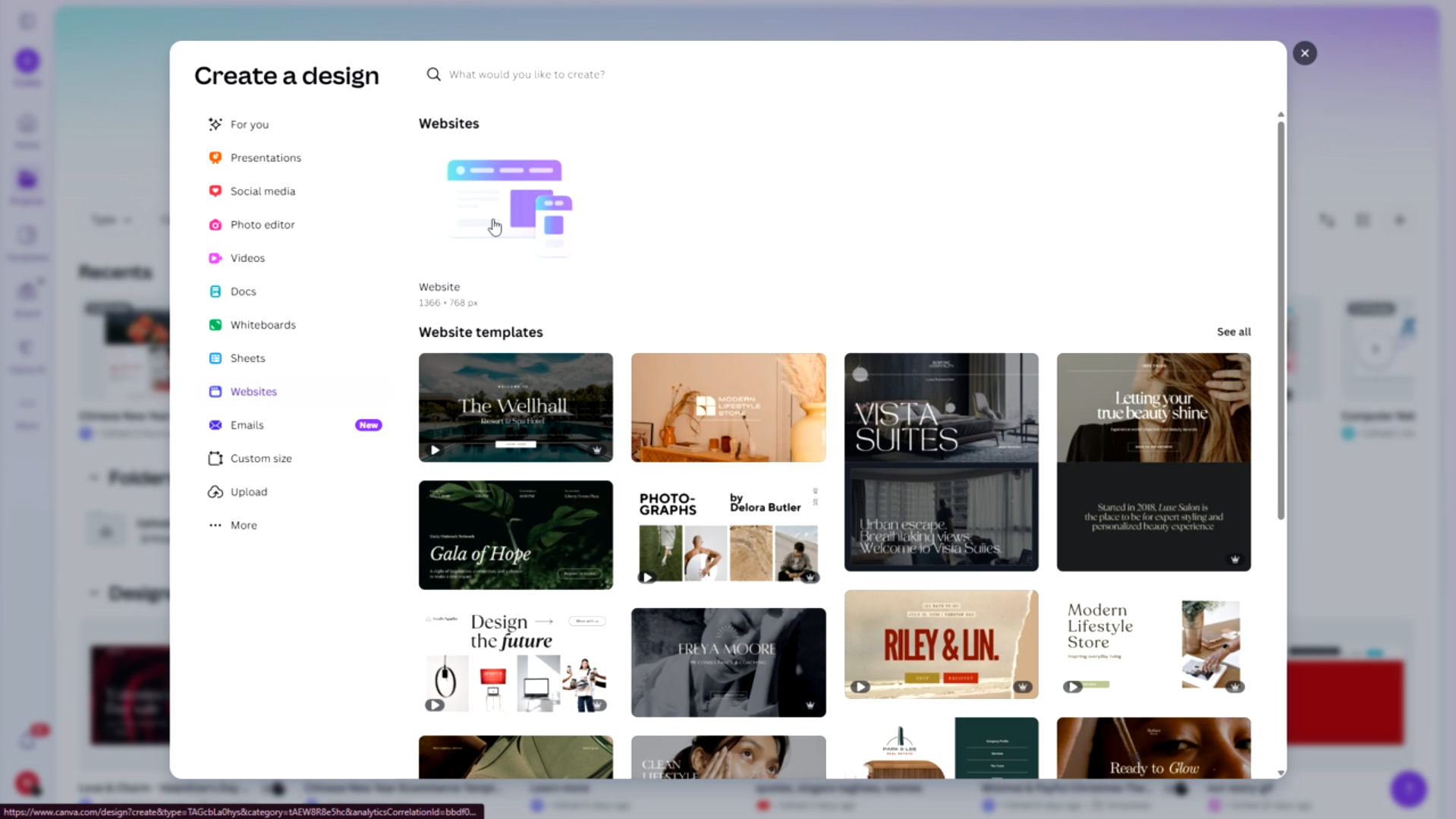 You can:
- Choose from Canva’s ready-made website templates
- Use our ready-made Canvify templates and modify them
- Begin with an empty website(though we recommend you always start with a template)
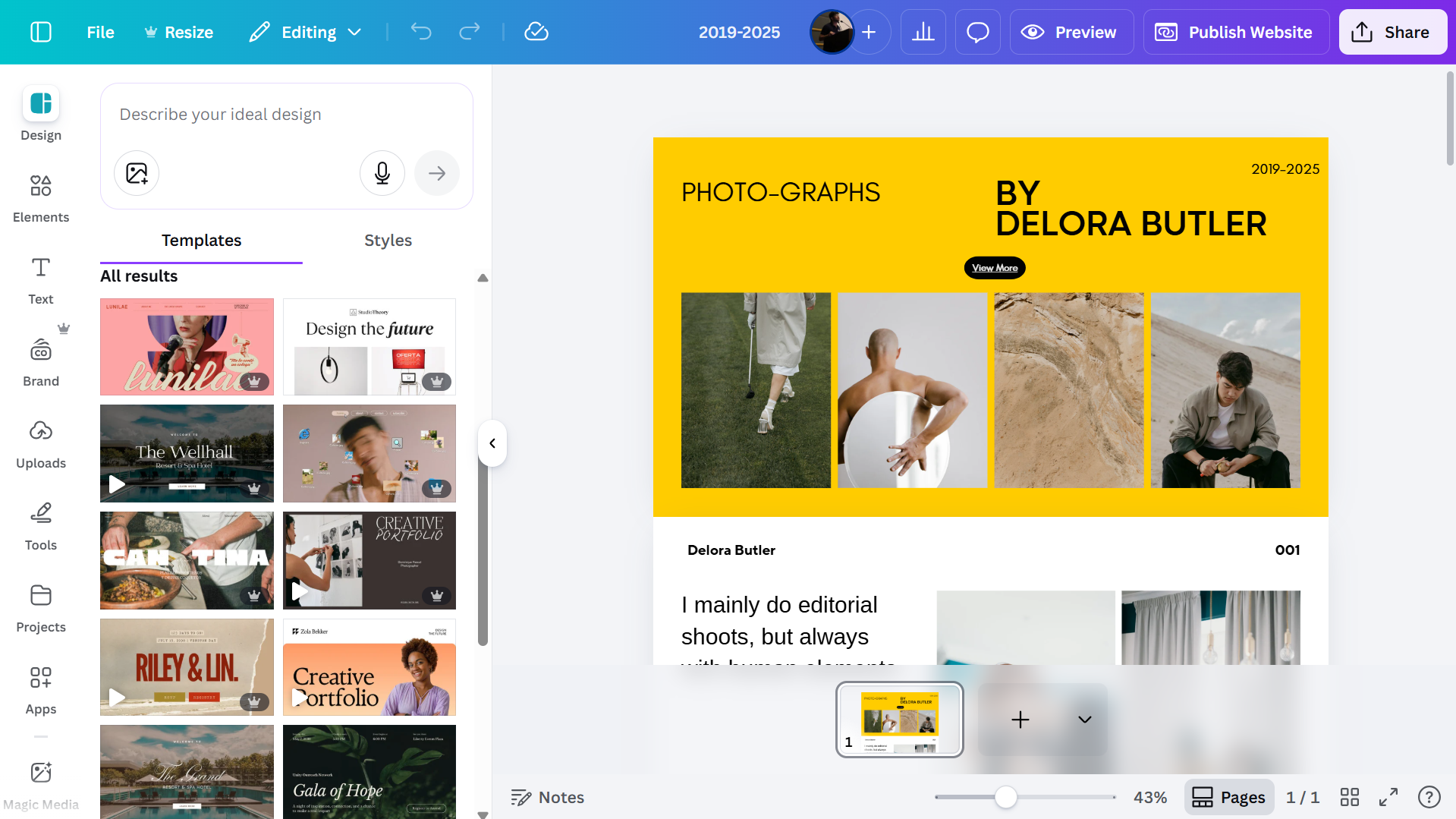
Once your design is open, you can start designing your Shopify page. In most cases, using a pre-made website template is the fastest option. Find free Canva website templates on Canvify store. Feel free to:
- Edit text
- Replace images
- Adjust layouts or sections to better match your brand
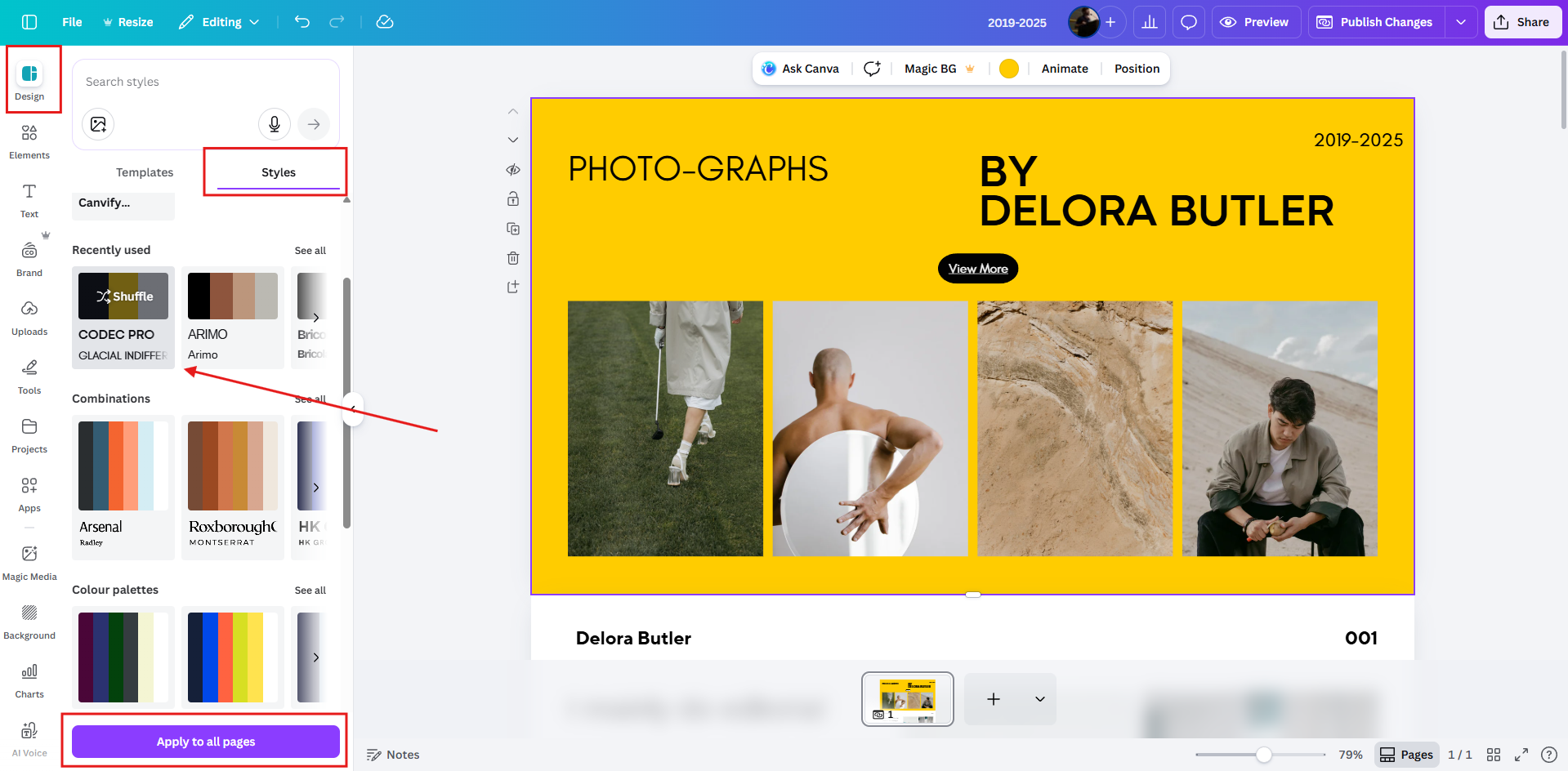
You can also change the color scheme of your design by going to Design -> Styles and see which color scheme works for you. Your brand color palettes that you set in Canva also appear here. This section can help you keep consistent color scheme for multiple Canva website designs.
Step 2: Publish the Canva Design as a Website
Once your design is ready, publish it as a website.
Before publishing:
- Select a website URL
- Turn on mobile responsiveness from publish -> settings -> mobile resize(on)
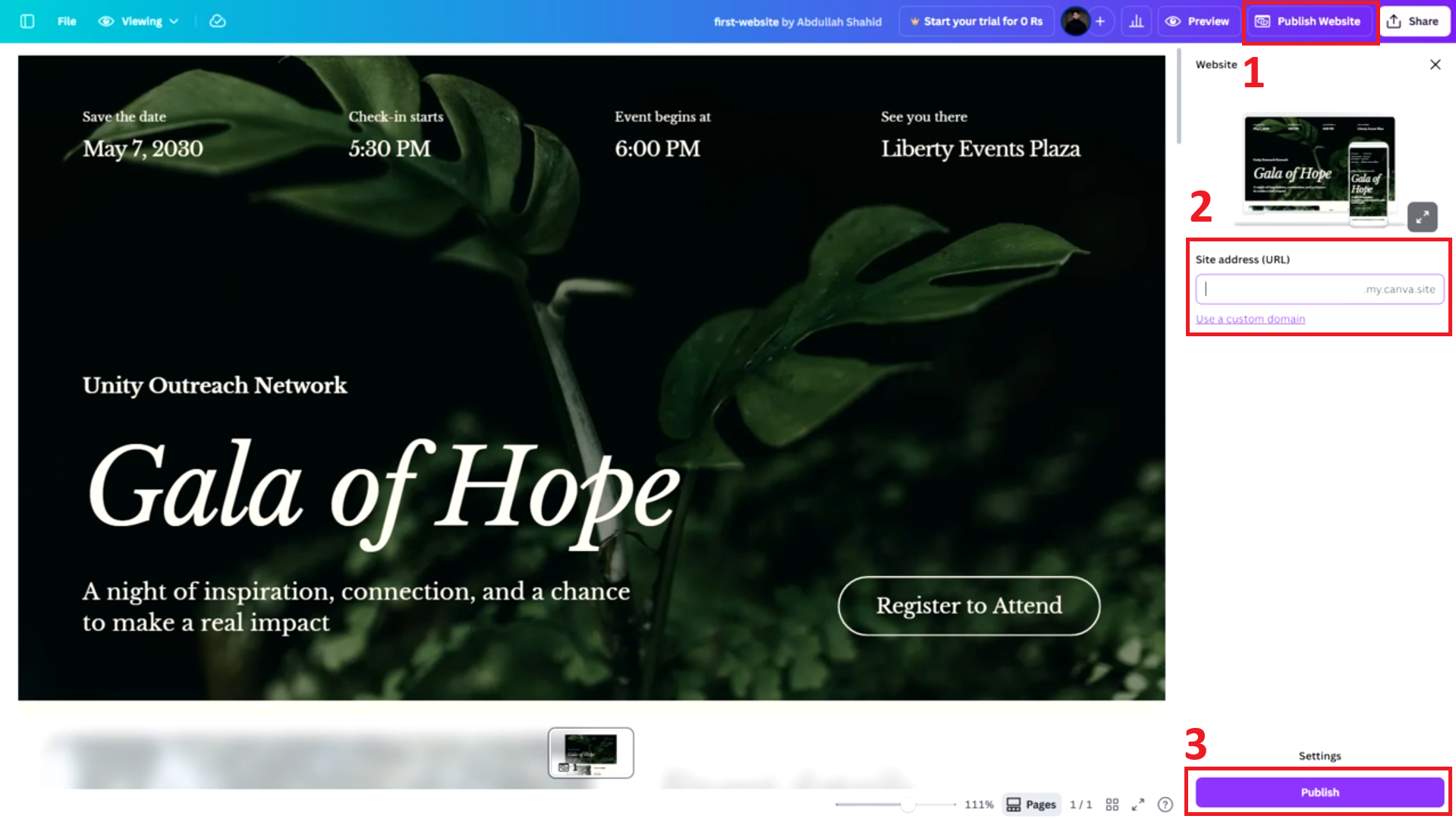
Note: Please do not use custom domain. You domain is linked to Shopify, not Canva so don’t add it here in Canva.
1st-time Users: When publishing, you will be asked to provide a unique name for Canva websites. You only need to add this name once and Canva will always use this name for all websites you create. No need to stress over it. This URL gets replaced by your Shopify URL later on so just add anything.
Now publish the design.
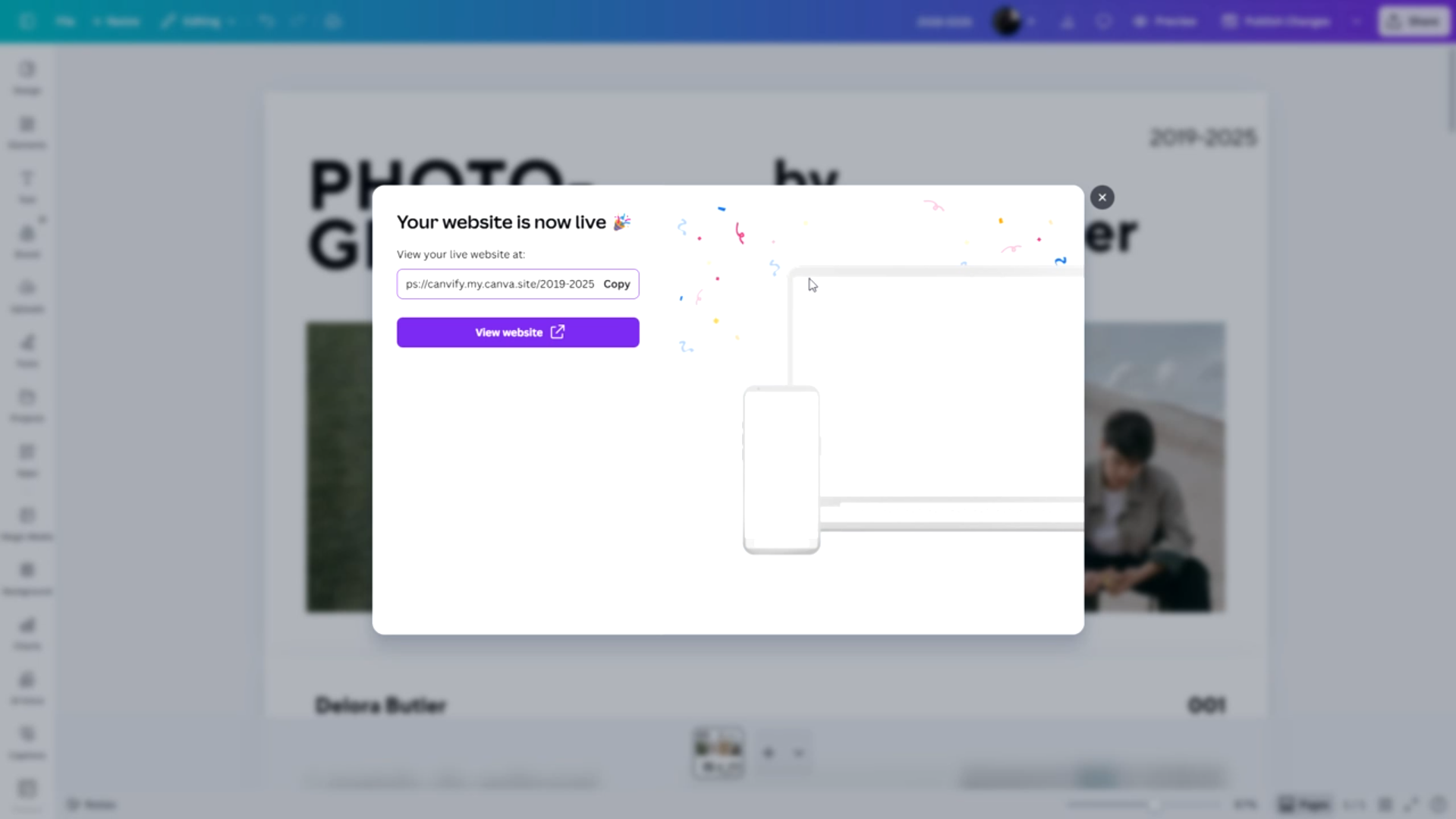
After publishing, Canva will generate a public website link for your design.
Copy this link… you’ll need it in the next step.
Step 3: Import the Canva Website into Shopify Using Canvify
Now switch over to your Shopify admin dashboard.
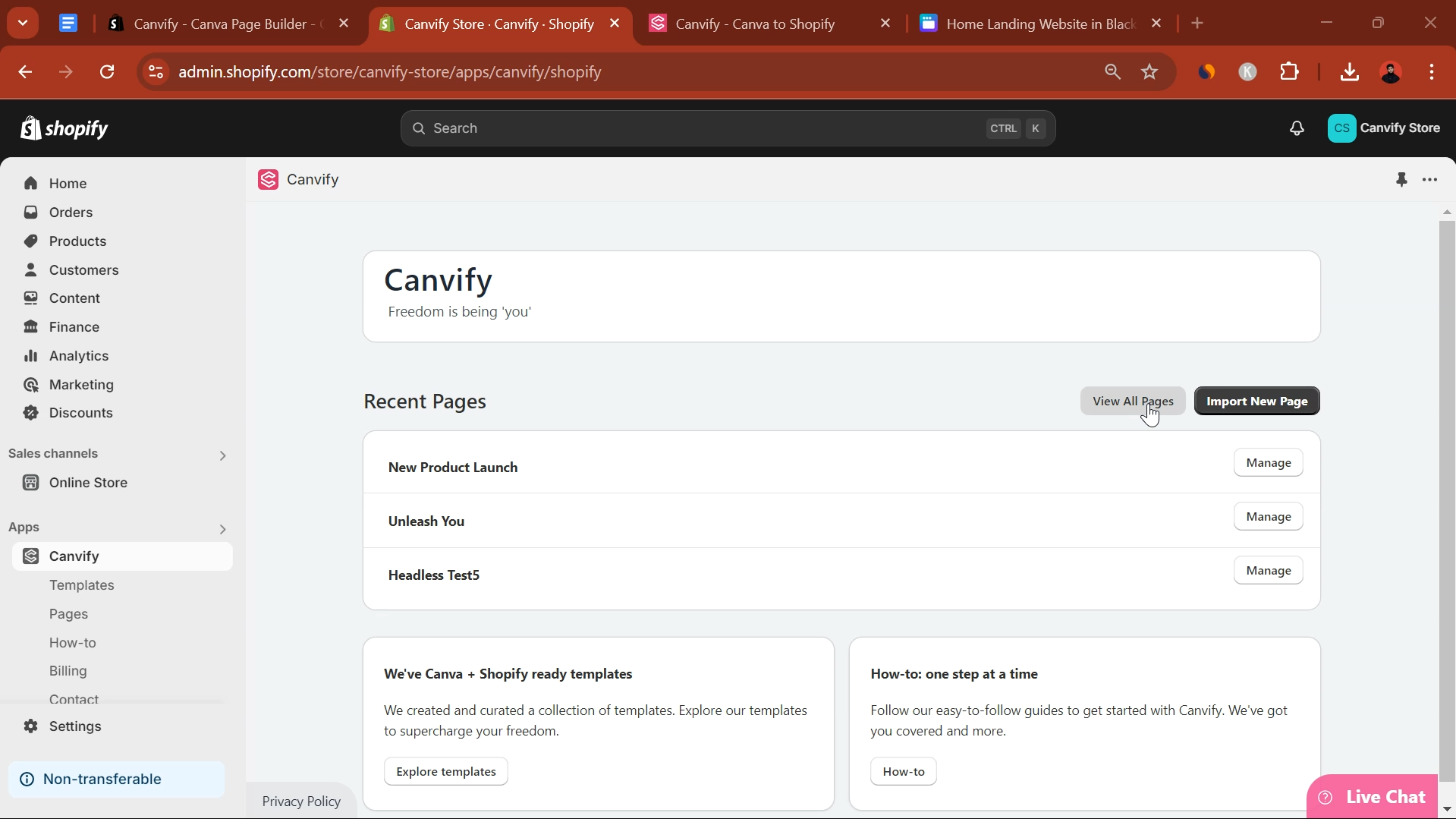
Open the Canvify app and click Import New Page.
Paste your Canva website link, give your page a page a title.
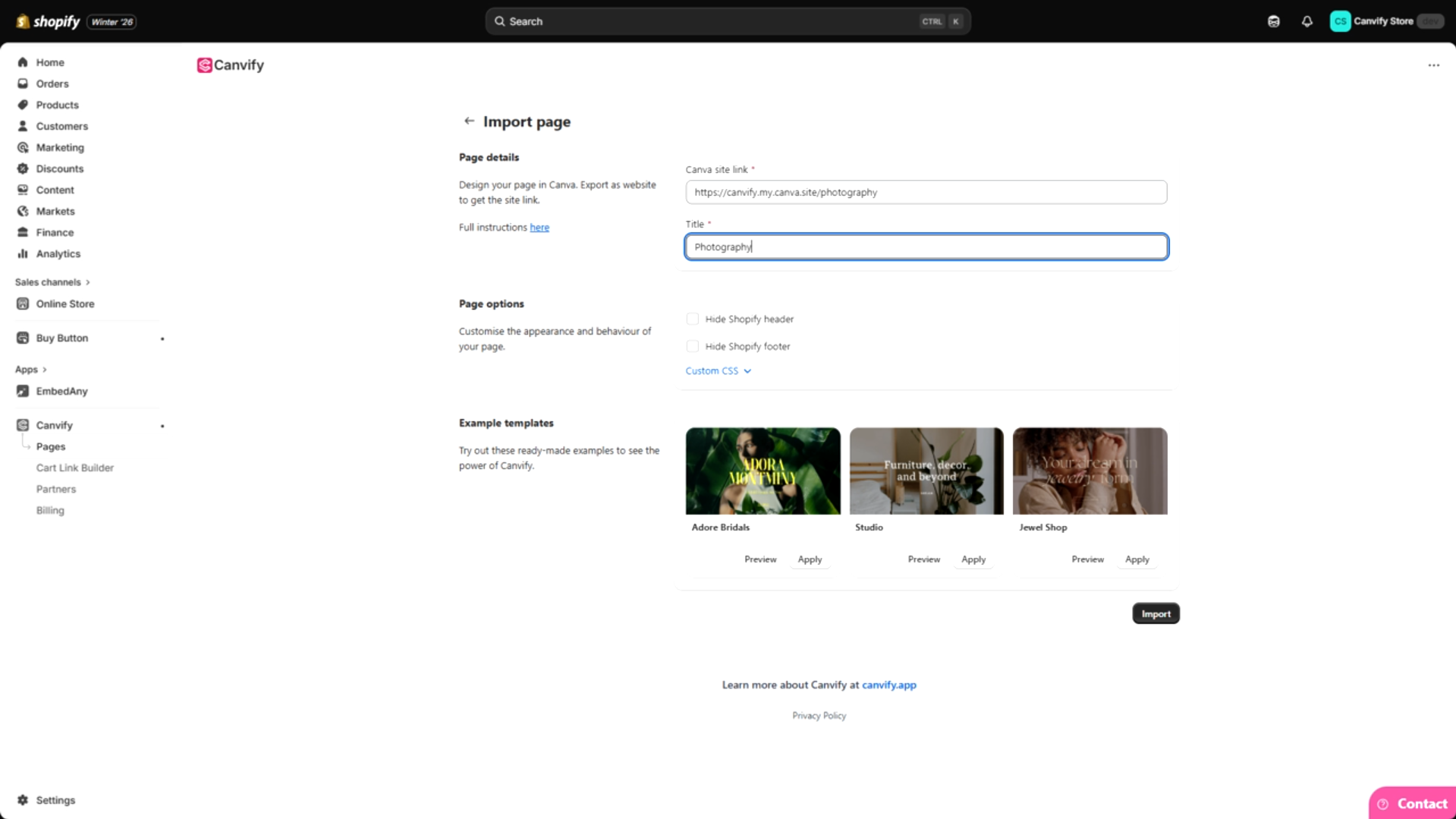
Click Import.
Once the import is complete, click ‘View Page’ to preview it. For password protected Shopify stores, add your password and click ‘View Page’ again.
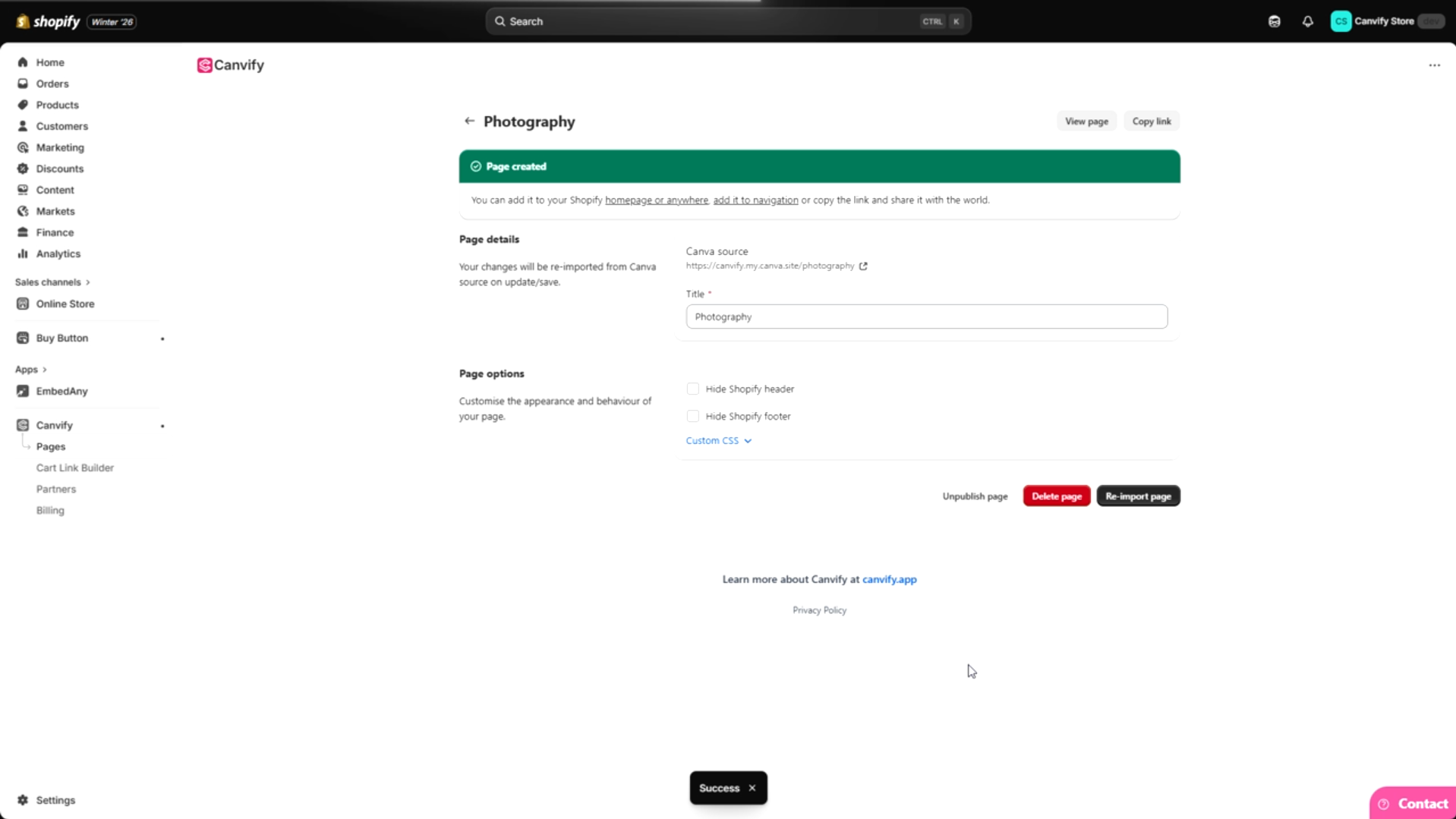
You’ll see your Canva design now fully live inside Shopify.
Each imported page gets its own Shopify URL, which you can use anywhere in your store including buttons, menus, banners, or links.
What Can You Do Next?
Once your Canva design is live in Shopify, you can:
- Add Canvify Page to Homepage
- Add imported Canvify pages to your navigation bar
- Add Buy Now or Add to Cart buttons to your pages
Need Help?
If you run into any issues or have questions, our customer support is always available to help with fast, real-time assistance.
Thanks for using Canvify and happy building!