Updating and Deleting Imported Pages from Canvify
Updating a Page
You’ve published and imported a Canva website to Shopify. Now, if you want to make changes to your design, you don’t have to go over the import process all over again. You can just update the same page’s design. Here’s how!
-
- Make the necessary changes in Canva and republish the website. This will update your new changes to your Canva website link.
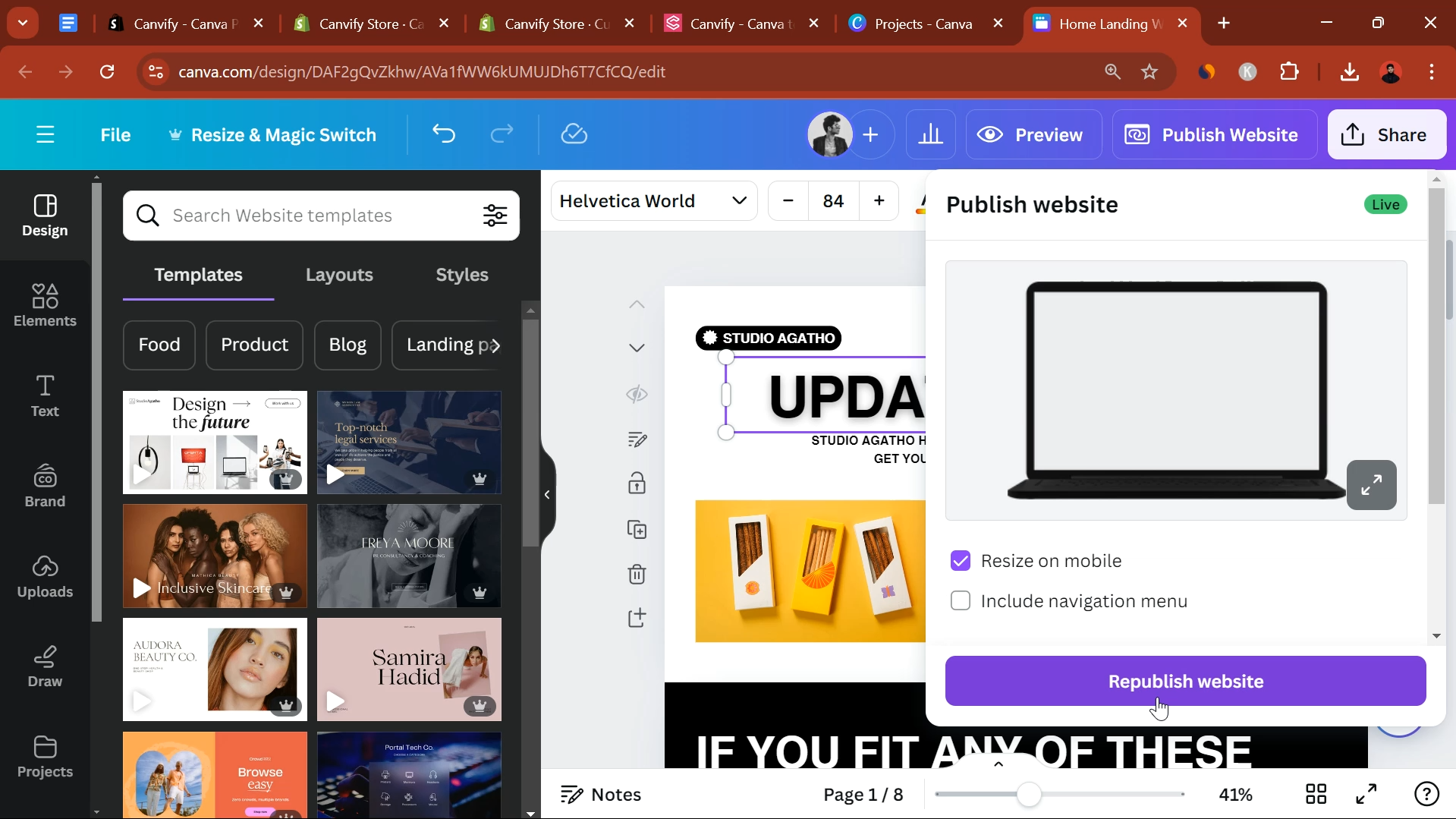
-
- Open Canvify app from Shopify Admin, and head over to imported pages. Select the page you previously imported.
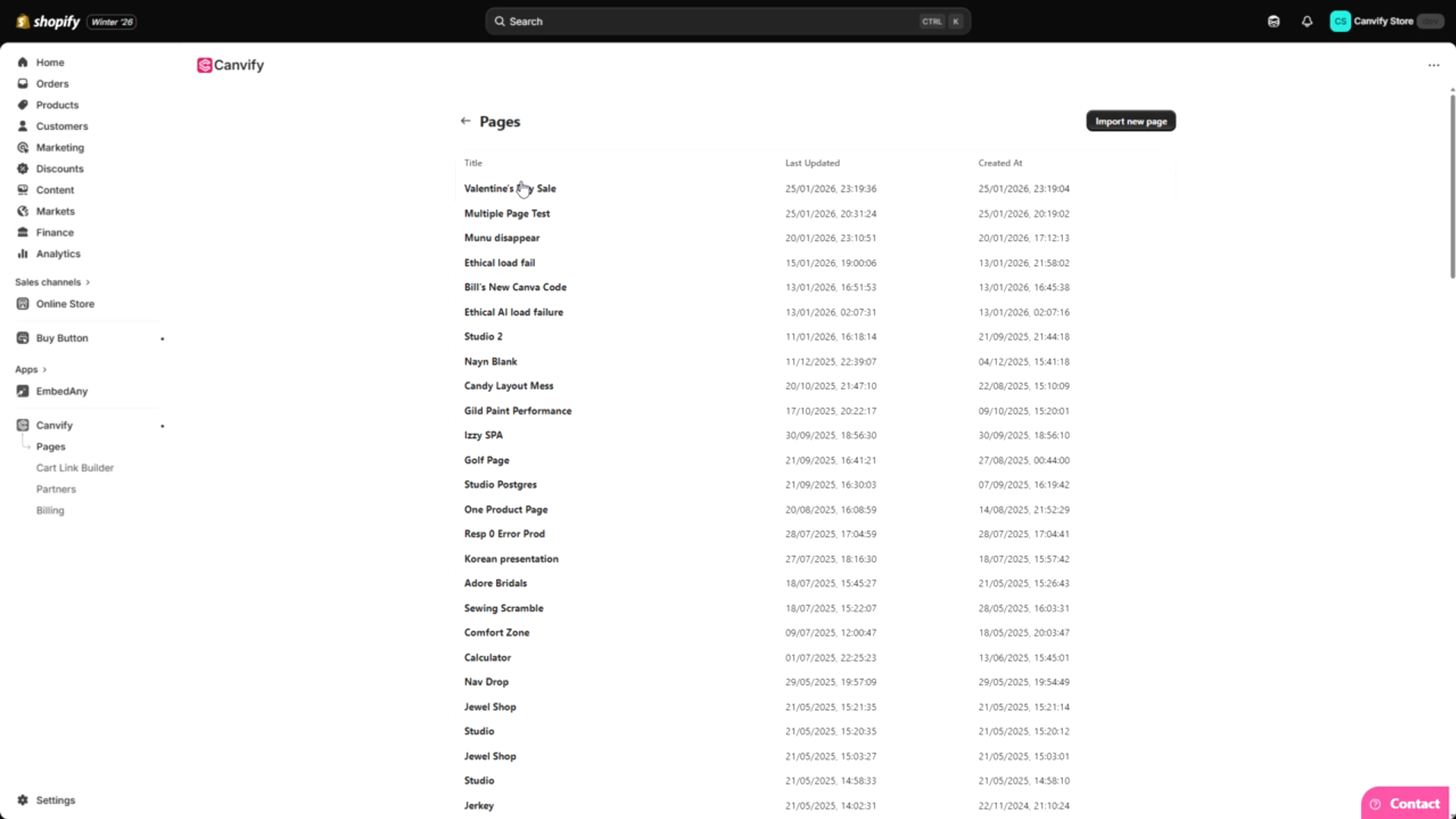
-
- You will see the option to ‘re-import page’. Click on it, and it will fetch the changes from Canva website link automatically and update it on your Shopify store, where you linked it.
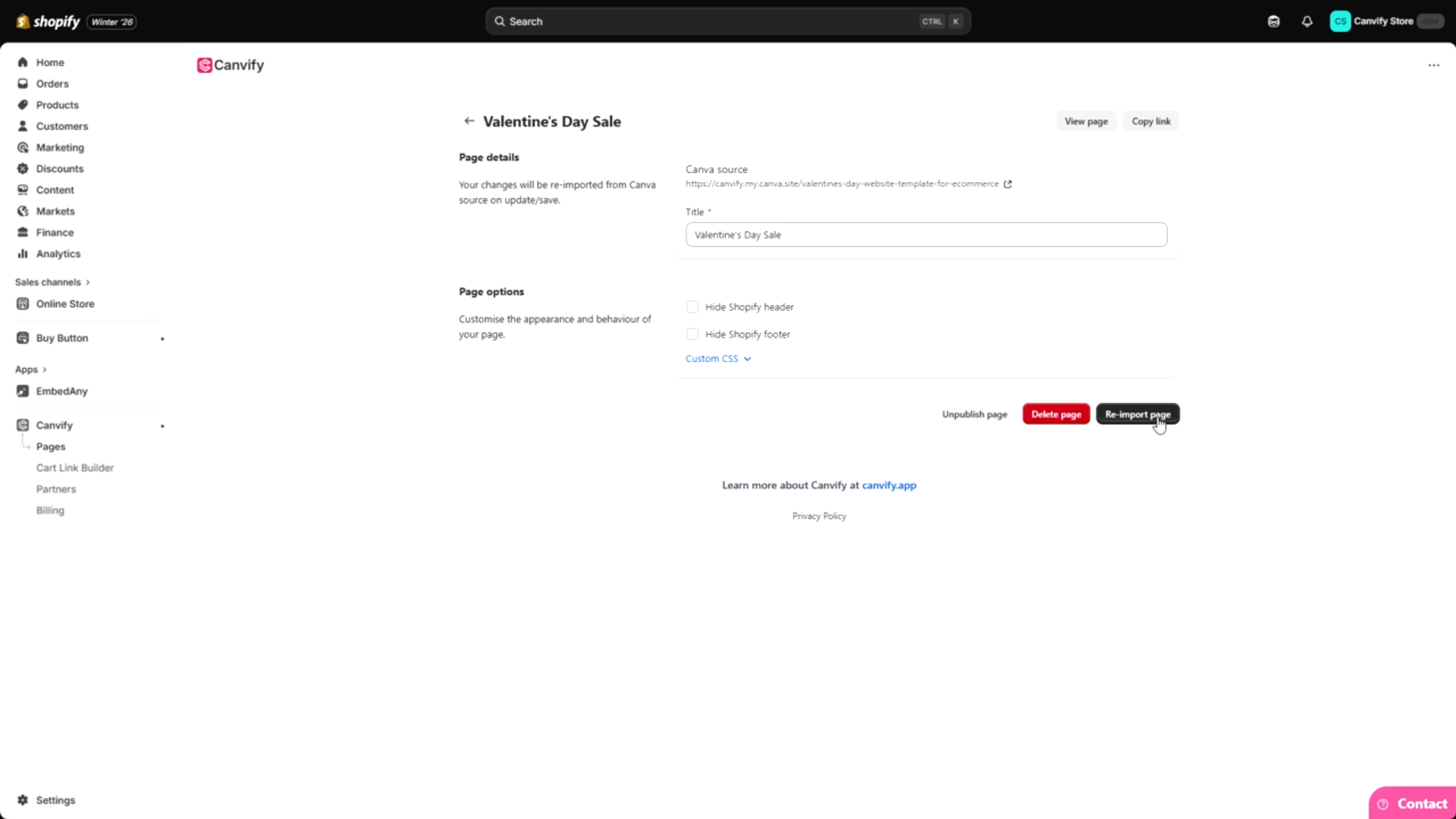
Deleting a Page
There are two ways to delete a Canvify page. You can:
- Unpublish Page: It will stay imported in Canvify but will not show up on Shopify
- Delete Page: It will permanently delete the imported page from Shopify.
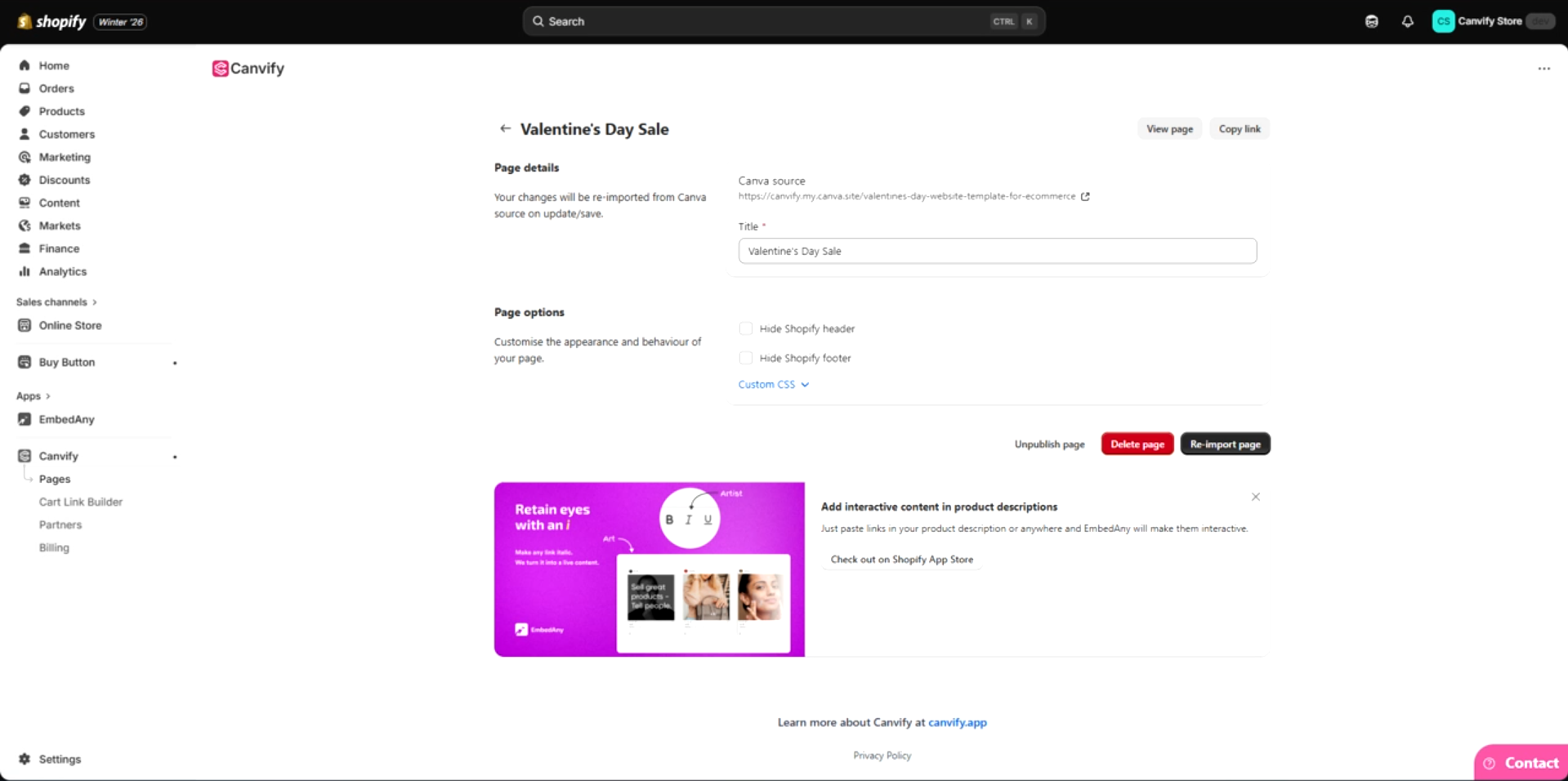
In the Pages section, locate the page you wish to delete or unpublish.
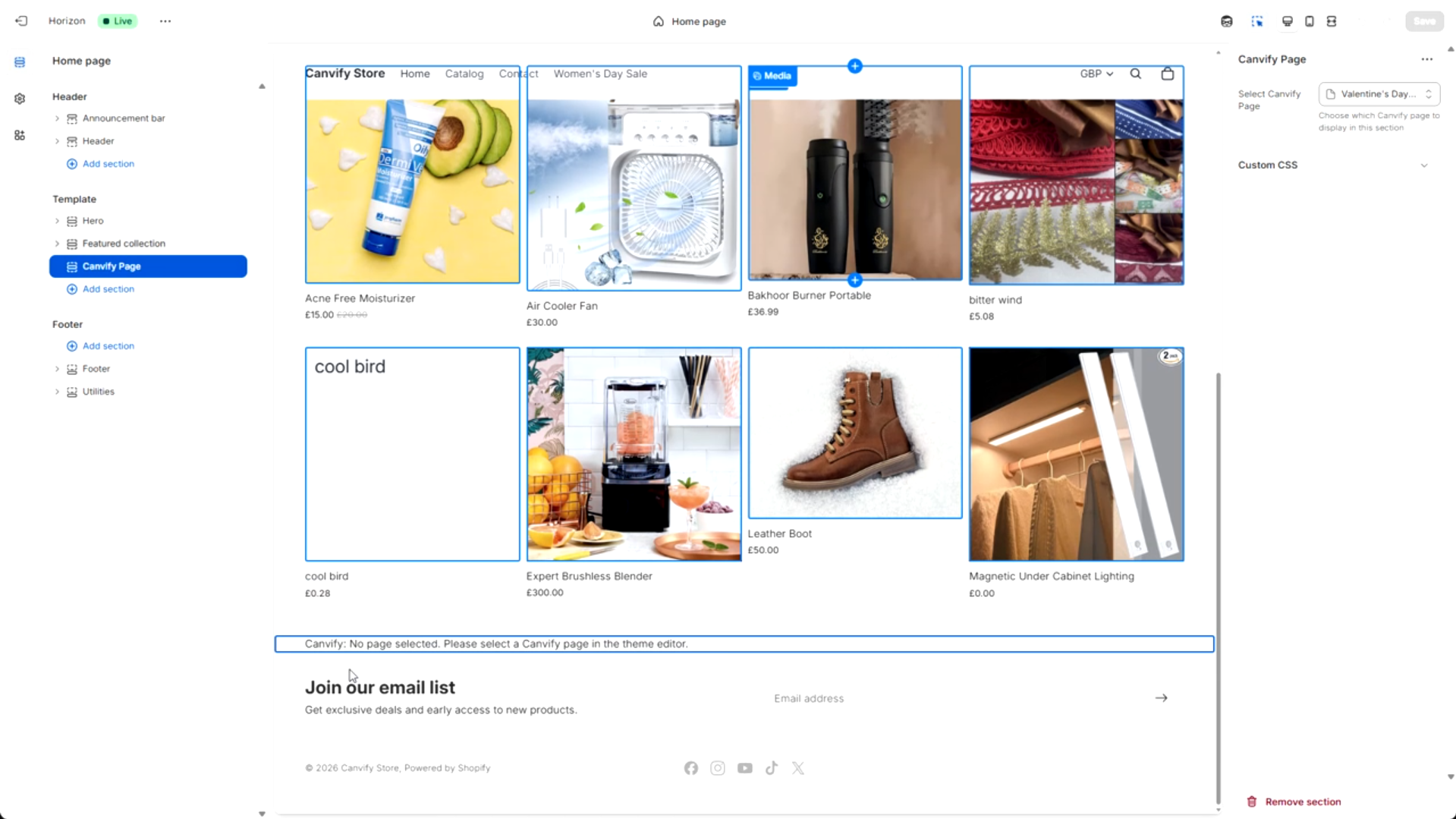
Important: When you delete or unbplish a page you added to your Shopify page (e.g homepage), the page will disappear from your design but will leave a Canvify warning text (see the screenshot below). It is important to delete this section from theme editor as well if you added it to the theme.