Embedding videos into your Canva-designed website can significantly enhance user engagement by integrating multimedia elements from popular platforms like YouTube, TikTok, Instagram, and more. With Canva’s Embed app, you can easily embed supported media, including videos, links, and other elements, directly into your site. Below, we’ll walk you through the general steps and provide specific guidance for each platform.
How to Embed Any Video in Canva Websites
To embed a video in your Canva website:
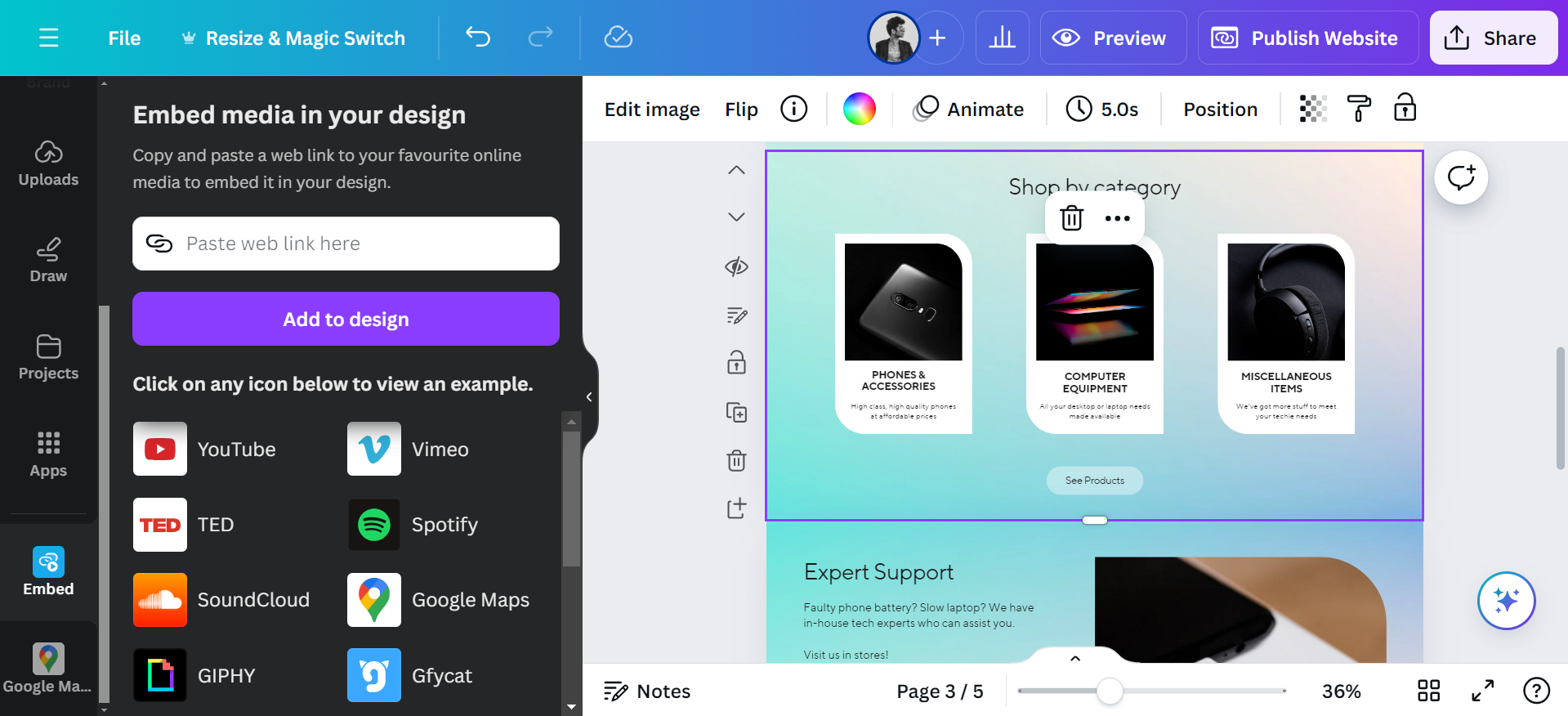
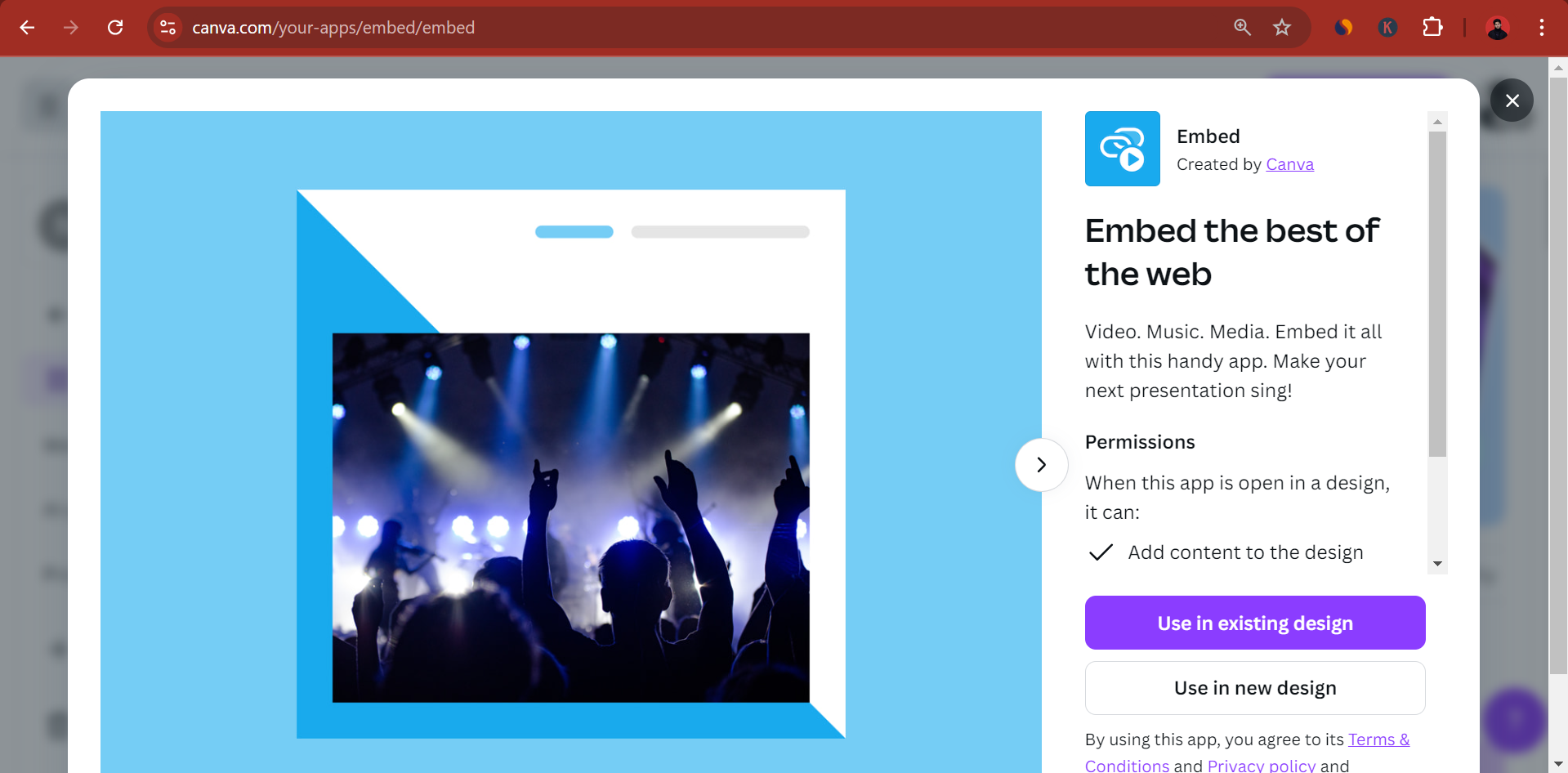
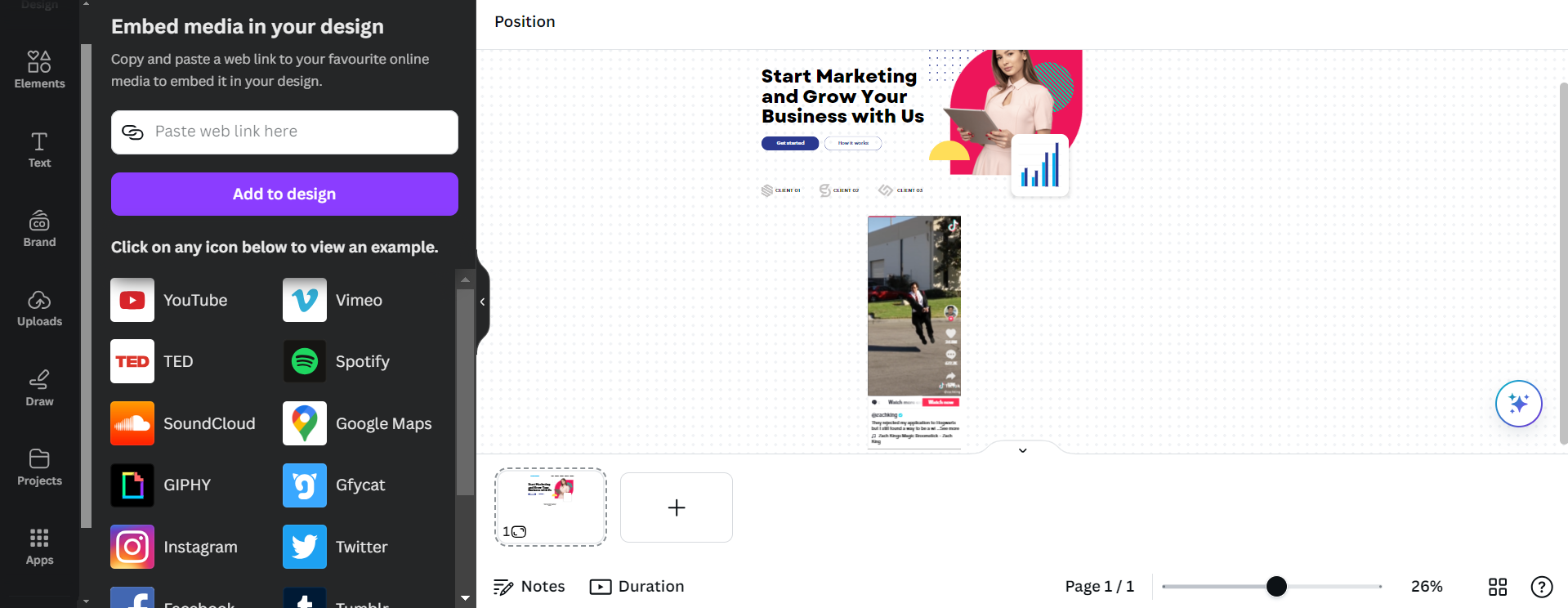
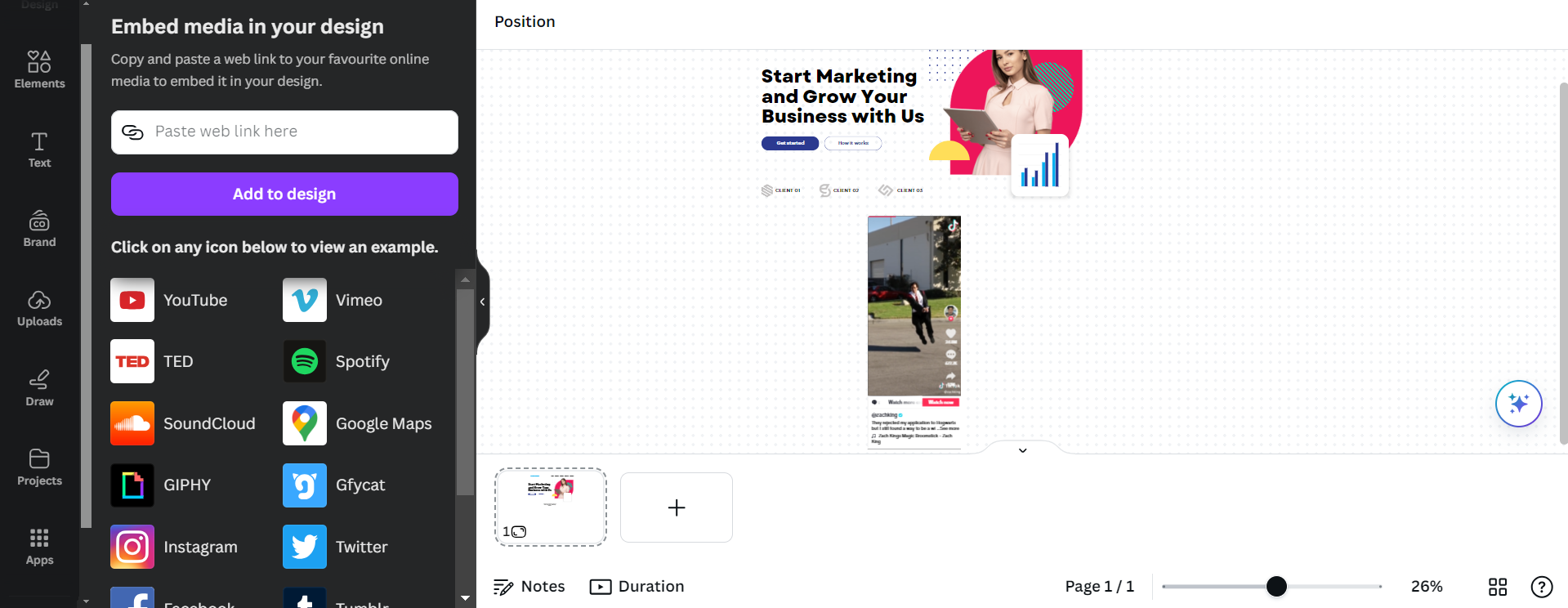
Access the Embed App: While designing your website in Canva, go to the left-side menu and click on the “Apps” option. Search for the Embed app and select it.
Embed App: Canva
Copy the Video URL: From the platform where your video is hosted (e.g., YouTube, TikTok, etc.), copy the video’s URL.
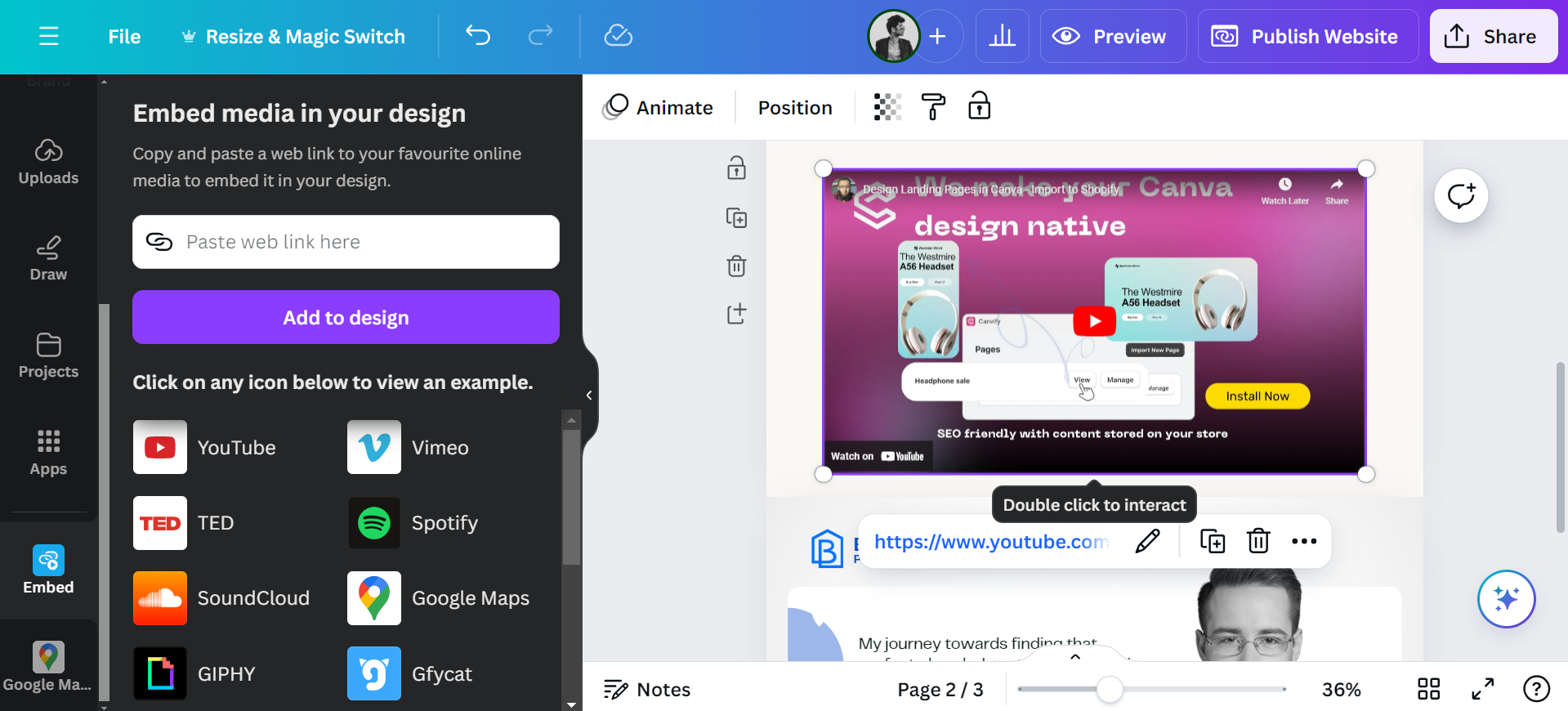
Paste the URL: Paste the copied URL into the Embed app’s input field within Canva.
Position the Embedded Video: Adjust the video’s placement on your website as needed.
Preview and Publish: Once the video is embedded and positioned, preview your website to ensure the video displays correctly. When satisfied, publish your website.
The steps above apply to any video, regardless of platform. However, the experience for users might differ depending on the platform.
How to Embed YouTube Videos in Canva Websites
YouTube is one of the most commonly used platforms for embedding videos in websites.
Live Embedding: When you embed a YouTube video using the Embed app, the video can be played directly on your website without redirecting users to YouTube. This is great for keeping visitors engaged on your site.
Content Variety: You can embed various types of content, including regular videos, live streams, and even playlists.
How to Embed TikTok Videos in Canva Website
TikTok offers a vibrant and dynamic video-sharing experience. The process remains the same as mentioned on top but here are some things to know:
Embedding TikTok Videos: The process remains the same—copy the TikTok video link and paste it into the Canva Embed app.
Live Video Embedding: You can even embed live TikTok videos, allowing real-time interaction directly from your Canva site.
For more detailed instructions, check out our blog on how to add TikTok posts to your Shopify store using Canva.
How to Embed Instagram Posts and Reels in Canva Websites
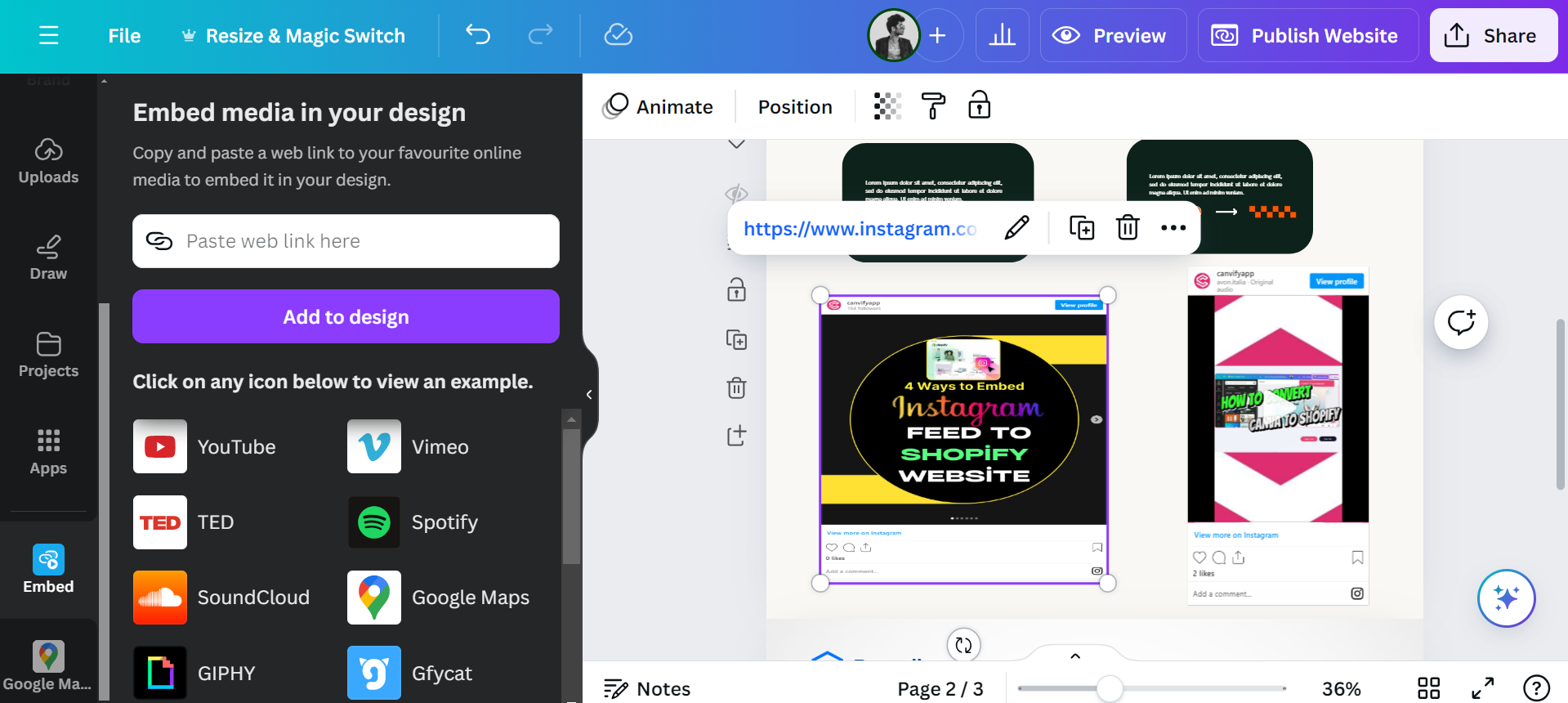
Instagram videos, including reels and IGTV, can also be embedded into your Canva website. The process remains the same as mentioned on top but here are some things to know:
Embedding Reels: Embed Instagram Reels to showcase quick, engaging content. Users can view reels in video post structure, but to like or comment, they will be redirected.
Embedding Posts & Carousels: Users can swipe carousels and see posts/videos from your embedded feed.
For further information on integrating Instagram posts with your Shopify store using Canva, refer to our dedicated blog on this topic.
How to Embed Facebook Posts & Reels to Canva Websites
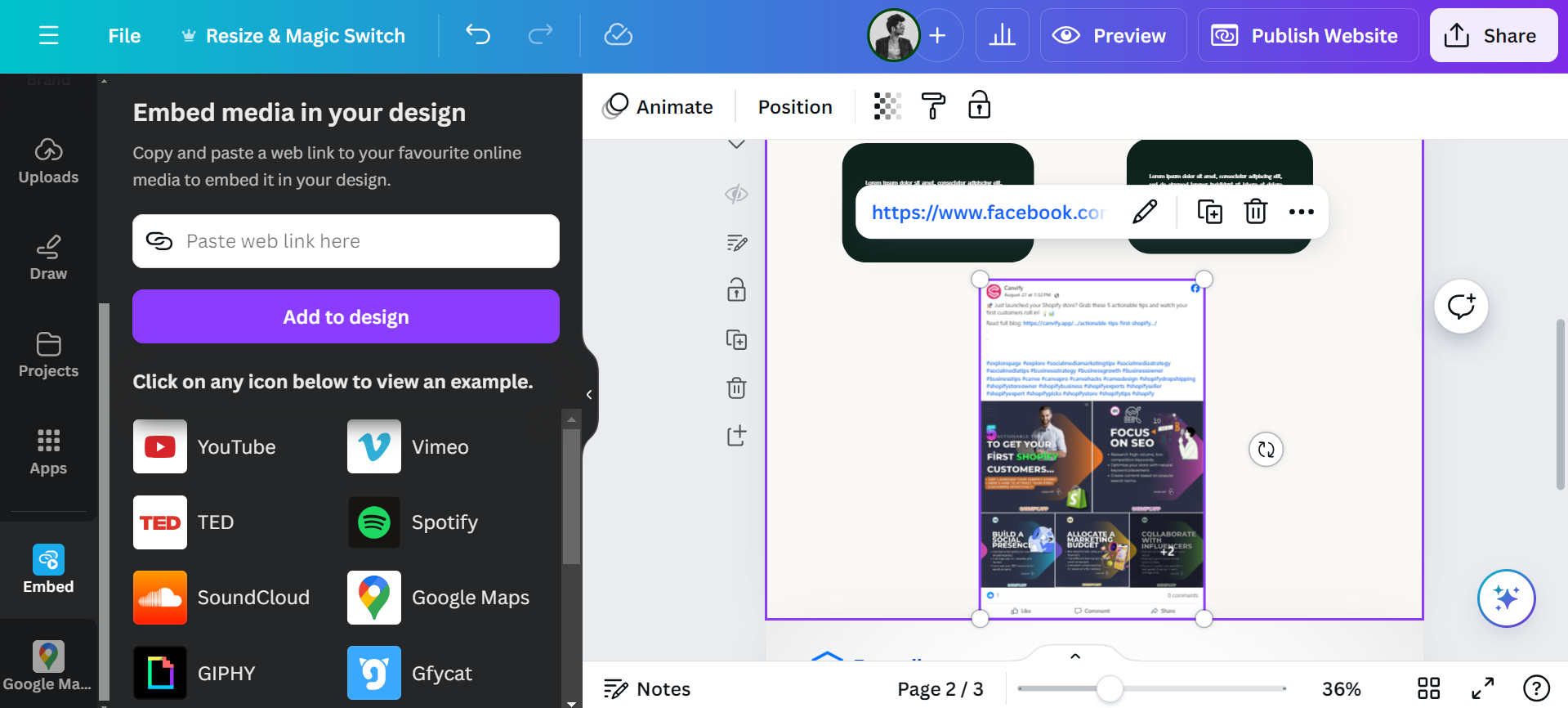
Facebook allows you to embed both live and recorded videos.
Live Video Embedding: Like TikTok, you can embed live Facebook videos and reels to Canva websites to engage users in real-time.
Standard Posts: You will be redirected to Facebook to open carousels or when you click on pictures. You can only view the first 2-3 images from multi-image posts.
Embedding Other Media Platforms to Canva Website
Other platforms like Tumblr, Twitch, or LinkedIn also support video embedding, following the same general steps. Each platform offers unique features that can complement your website’s design and functionality. Our tip? Trial and error is always the best way, so copy-paste and find out.
Embed Any Videos to Shopify Directly Using Links
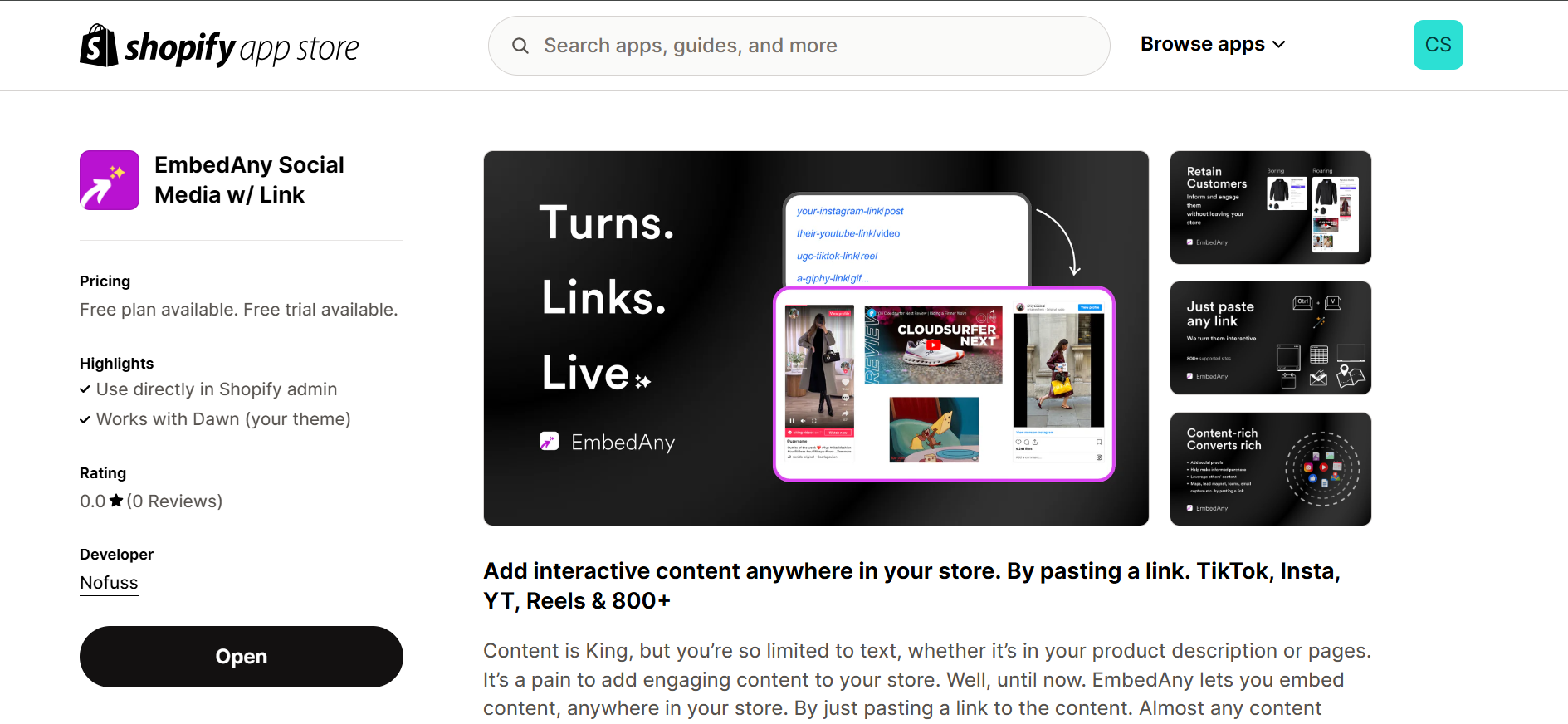
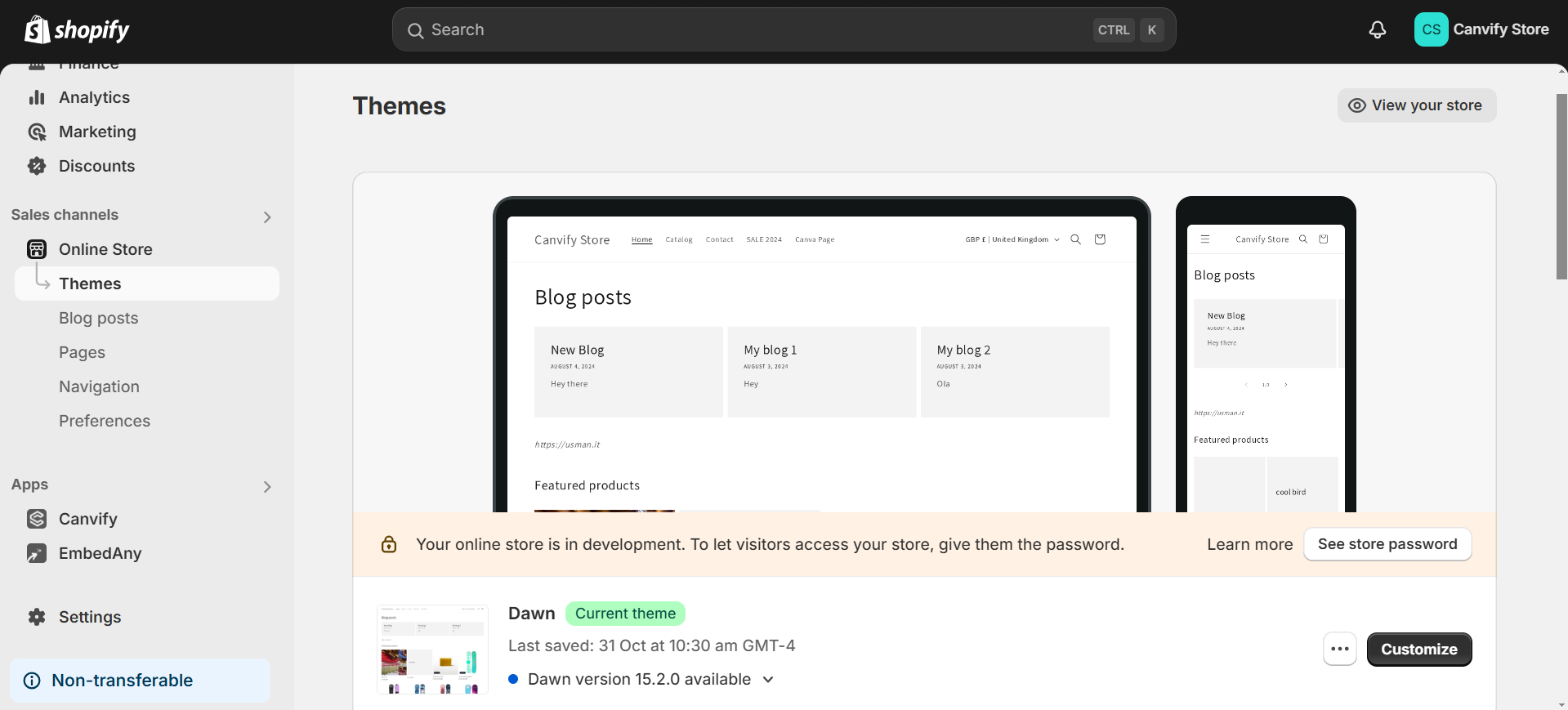
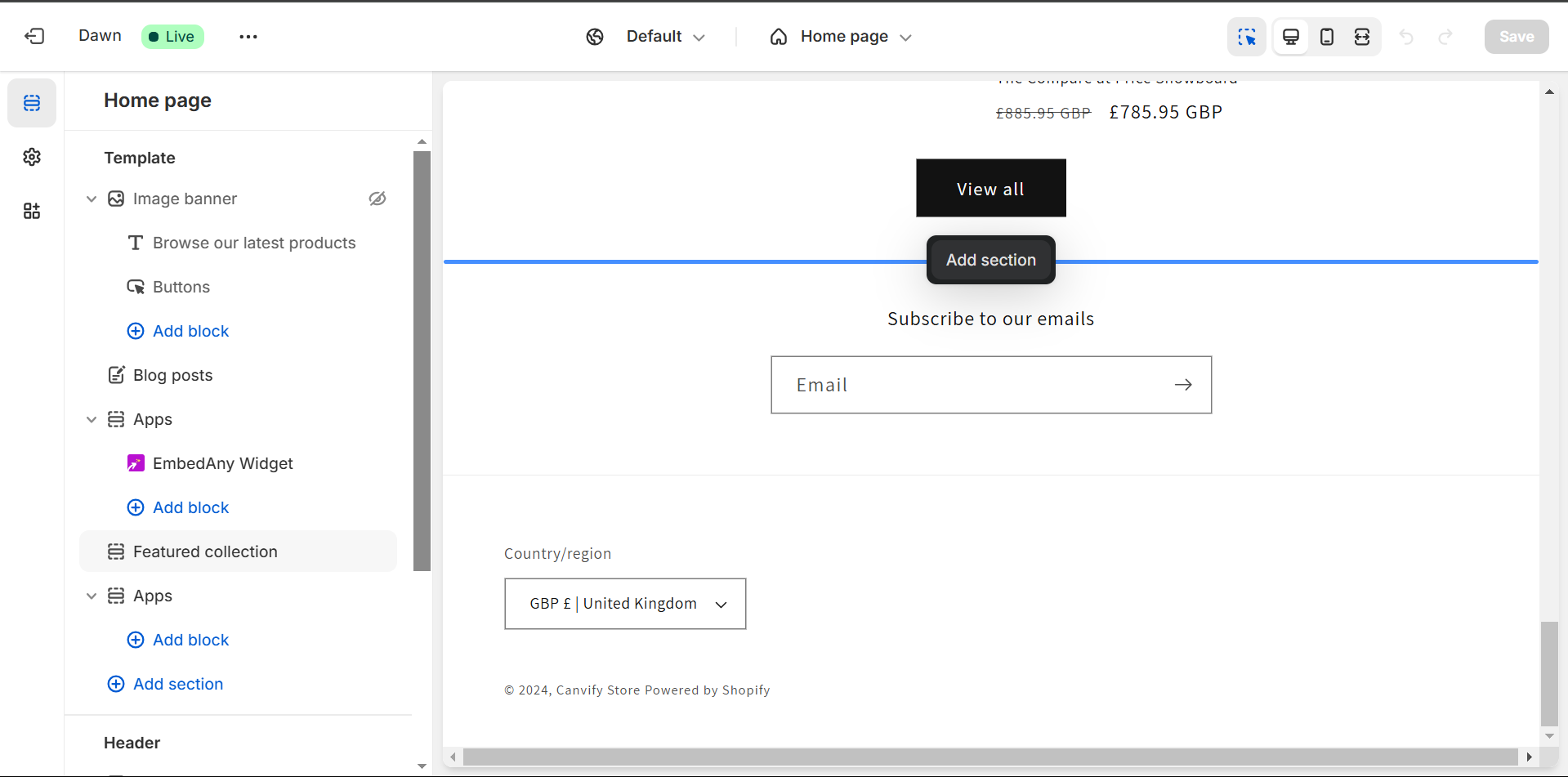
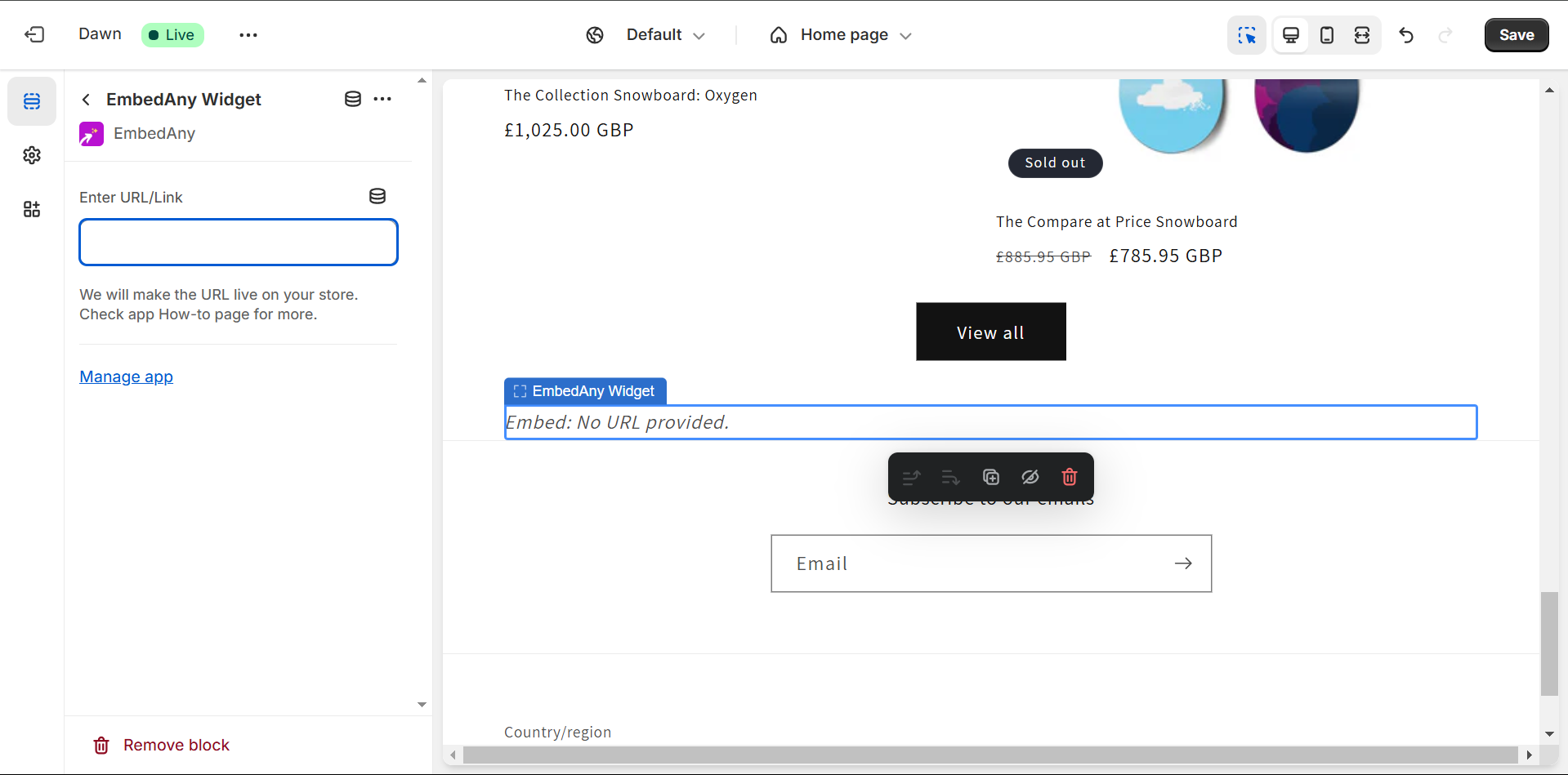
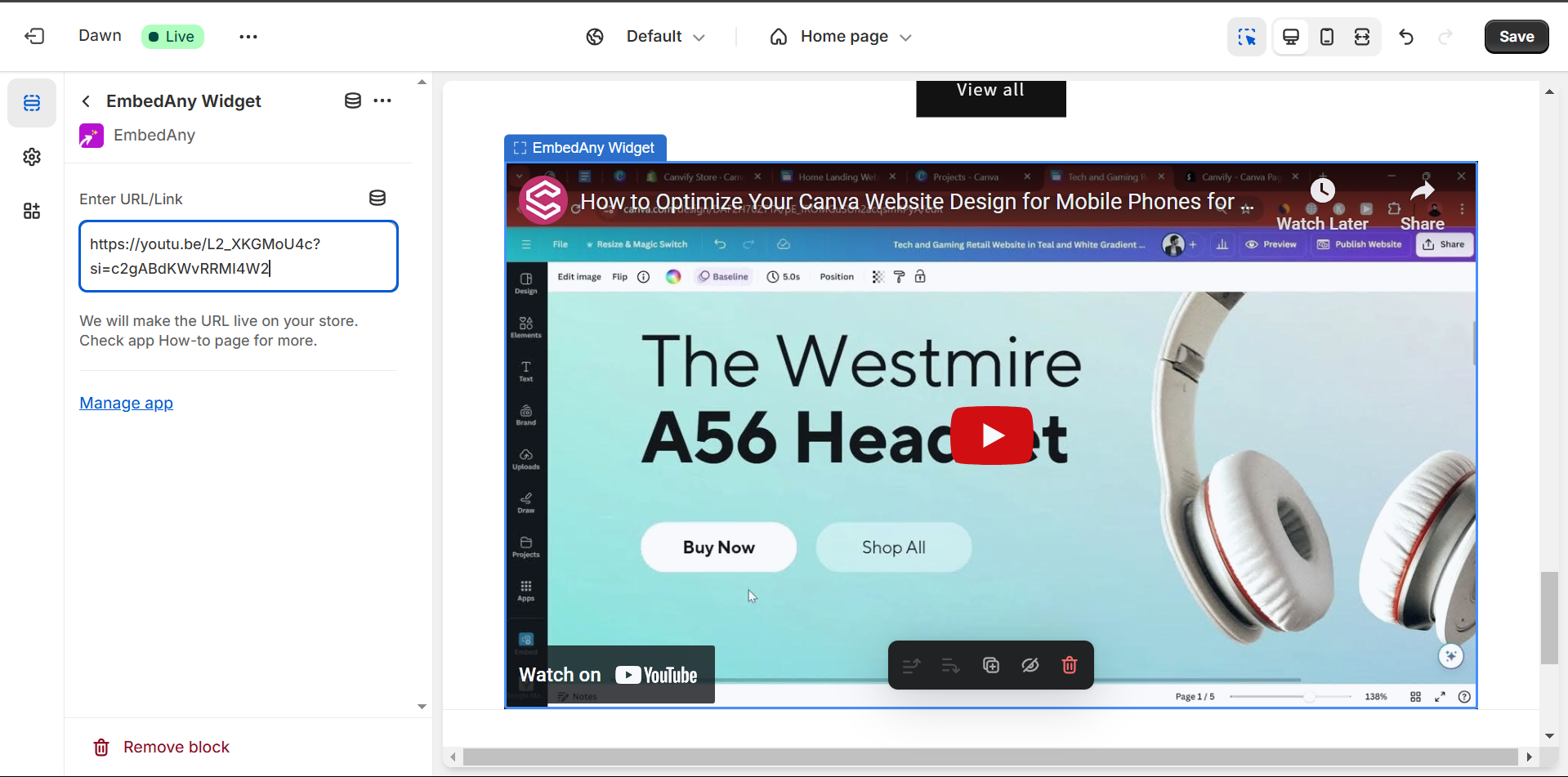
If you are looking to embed interactive content in Your Shopify store directly without using Canva, EmbedAny is a great way to do this. It turns your links into interactive widgets for Shopify. Here is how:
Ways to publish embedded video content from Canva or directly in Shopify
Ways to publish embedded video content from Canva or directly in Shopify
Method
Destination
Required tools
Workflow
Content support described here
Update process
Best for
Canva Embed + Canvify
A Canva-designed Shopify page
Canva Embed and Canvify
Embed the URL in Canva, position it, publish, then import or update the page
YouTube, TikTok, Instagram, Facebook, and other supported platforms
Republish the Canva design and update it through Canvify
By embedding videos from these various platforms, you can create a rich, multimedia experience for your website visitors, helping to keep them engaged and informed. Whether you want to showcase product tutorials, customer testimonials, or live events, Canva’s Embed app makes it easy to integrate video content from multiple sources seamlessly.